
This is the print version of this page. All content is copyright Indezine.com 2000-2026.
Info-things on PowerPoint usage including tips, techniques and tutorials.
See Also:
PowerPoint and Presenting Notes
PowerPoint and Presenting Glossary
I recently tweeted about my new article that showed how you can import an outline you create in TextEdit on Mac OS X straight into PowerPoint to create your slides quickly and easily — soon I received a tweet response from Joel Heffner who could not make this happen. To cut a long story short, we found that this happened because PowerPoint cannot work with outlines that are encoded as Unicode (UTF-16).
What you need to do is choose TextEdit | Preferences — and then select the Open and Save tab shown in Figure 1, shown below.
 .
.
Figure 1: TextEdit Preferences
Make sure you choose Unicode (UTF-8) or Western (Mac OS Roman) — and then create your outline using this link: Creating PowerPoint Outlines in TextEdit — Mac. Other encoding options may also work — but Unicode (UTF-16) does not!
Filed Under:
Uncategorized
Tagged as: Outlines, PowerPoint Mac, Textedit
Comments Off on Outlines from TextEdit on Mac OS X Don’t Import in PowerPoint?
Typically, you can start your slide numbering with any number. So yes, your first slide can be numbered fourth. But what if you want the opposite? Maybe, you want your fourth slide to be numbered first! This question was asked on Microsoft Answers, and Chirag Dalal of OfficeOne had an awesome answer. Here is what you need to do:
Now, when you start the slide show, PowerPoint will show your first three slides without slide numbers and will sport the slide number 1 on your fourth slide, and 2 on the fifth slide, and so onward.
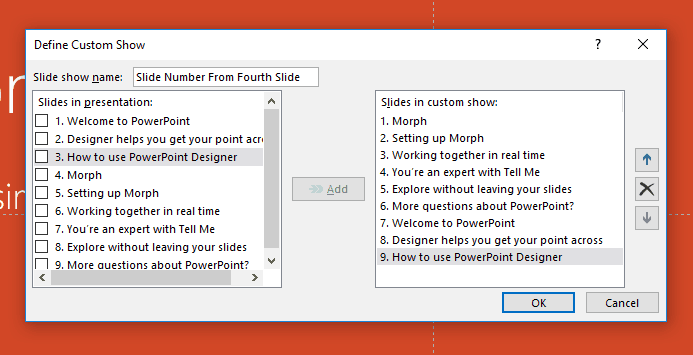
I wish to thank Chirag for his permission to explain this process on this post.
You May Also Like: If you want to learn about a workaround that lets you number Slide Sections individually, look at Numbering Slides from 1, Multiple Times in PowerPoint.
Filed Under:
Techniques
Tagged as: Chirag Dalal, Custom Shows, PowerPoint, Slide Numbers
Comments Off on Slide Numbers: Make Slide #1 Start on the Third, Fourth, or Another Slide
Here’s a question that I was asked recently:
Geetesh, I hope it is OK if I ask you a question about PowerPoint. You seem like the expert that can help me. I have a Mac with PowerPoint 2004 installed on it. My daughter created a PowerPoint at school on a 2007 version and can’t make it work on our 2004. Should we buy the new 2008 version of Microsoft Office for the Mac. If we do, is that compatible with the the 2007 version. I want her to be able to take her work from school and be able to work on it at home. What do you think? Thanks for your time.
I am guessing your daughter created a PowerPoint presentation in the new PPTX file format that is native to both PowerPoint 2007 for Windows and PowerPoint 2008 for the Mac. So, yes upgrading to PowerPoint 2008 on the Mac will allow you to open and save PPTX files that will let your daughter take her work from school to home, and back.
 Alternatively, you can get the free Open XML File Format Converter for Mac that will let you open and save these PPTX files from within your existing PowerPoint 2004. This is a great solution if you just need to view the PPTX files in PowerPoint 2004. On the other hand if she needs to work on those files at home, and move them often between home and school, then I suggest you upgrade to PowerPoint 2008. Since she is a student, you can get the three-license version of the Microsoft Office 2008 Home & Student version for around $100.
Filed Under:
Troubleshooting
Tagged as: Office Mac, PowerPoint 2007, PowerPoint 2008
Comments Off on Open PPTX in PowerPoint 2004 for Mac
If you have multiple versions of PowerPoint installed, you might find that when you double-click on a PPT or PPTX file, it opens in a version of PowerPoint that’s different from the one you want it to open!
Now you can reinstall all your versions of PowerPoint (and Microsoft Office) again in the sequence you want — and that might take a few hours, or you might do a few registry tweaks — and that’s not for the faint of heart, or even if you are scared of the registry!
So it was a great thing that one of our readers decided to share this DOS batch file with us that makes the whole process painless. Having said that, do this at your own risk — and if you are comfortable!
Damian McDonald is the founder of Visual Newmedia which has over 15 years’ experience in developing communication solutions for a number of leading global brands.
Here is the code you need to paste in your batch file — just replace this line:
set PathStart=C:Program FilesMicrosoft OfficeOFFICE
to reflect the name of the partition where your copy of Microsoft Office is installed — for example, if you installed to the D drive, the above line would change to:
set PathStart=D:Program FilesMicrosoft OfficeOFFICE
OK — here is the batch file:
REM **********************************************
REM Version 1.1 Date: 29/11/09
REM By Damian McDonald
REM www.visualpresenter.com.au
REM Registers the required Version of PowerPoint if it exists.
set PathStart=C:Program FilesMicrosoft OfficeOFFICE
set PathEnd=powerpnt.exe
set DirNum=11
set Version=2003
@echo Off
:Start
CLS
ECHO. Select the Version of PowerPoint to register.
ECHO.
ECHO 1. PowerPoint2003
ECHO 2. PowerPoint2007
ECHO 3. PowerPoint2010
ECHO.
set choice=
set /p choice=Enter your selection or Q to Quit.
if not ‘%choice%’==” set choice=%choice:~0,1%
if ‘%choice%’==’1’ goto 1
if ‘%choice%’==’2’ goto 2
if ‘%choice%’==’3’ goto 3
if ‘%choice%’==’q’ goto end
ECHO “%choice%” is not valid please try again
pause
Goto Start
:1
CLS
ECHO.
set DirNum=11
set Version=2003
IF NOT EXIST “%PathStart%%DirNum%%PathEnd%” ECHO PowerPoint %Version% does not appear to be loaded.
IF NOT EXIST “%PathStart%%DirNum%%PathEnd%” pause
IF EXIST “%PathStart%%DirNum%%PathEnd%” ECHO Registering PowerPoint %Version%.
IF EXIST “%PathStart%%DirNum%%PathEnd%” “%PathStart%%DirNum%%PathEnd%” /regserver
Goto End
:2
CLS
ECHO.
set DirNum=12
set Version=2007
IF NOT EXIST “%PathStart%%DirNum%%PathEnd%” ECHO PowerPoint %Version% does not appear to be loaded.
IF NOT EXIST “%PathStart%%DirNum%%PathEnd%” pause
IF EXIST “%PathStart%%DirNum%%PathEnd%” ECHO Registering PowerPoint %Version%.
IF EXIST “%PathStart%%DirNum%%PathEnd%” “%PathStart%%DirNum%%PathEnd%” /regserver
Goto End
:3
CLS
ECHO.
set DirNum=14
set Version=2010
IF NOT EXIST “%PathStart%%DirNum%%PathEnd%” ECHO PowerPoint %Version% does not appear to be loaded.
IF NOT EXIST “%PathStart%%DirNum%%PathEnd%” pause
IF EXIST “%PathStart%%DirNum%%PathEnd%” ECHO Registering PowerPoint %Version%.
IF EXIST “%PathStart%%DirNum%%PathEnd%” “%PathStart%%DirNum%%PathEnd%” /regserver
Goto End
:End
@echo on
REM **********************************************
Thanks Damian!
Filed Under:
Uncategorized
Tagged as: Multiple Versions, PowerPoint, Programming
Comments Off on Register the Default Version of PowerPoint
This questions has been asked often, and with PowerPoint 2010 coming up, it’s been asked more frequently. The question is about having multiple versions of PowerPoint installed on the same machine, and if that can cause any problems?
The answer is that generally you should see no problems as long as you follow some guidelines:
Make sure you have the install media for all your PowerPoint (and Microsoft Office) versions — and the serial numbers too!
PowerPoint 97
PowerPoint 2000
PowerPoint 2002 (XP)
PowerPoint 2003
PowerPoint 2007
PowerPoint 2010
After installing each version, reboot your system and install all available updates and service packs before proceeding to install the next successive version. Yes, you need to reboot after installing updates and service packs too!
And if your version of PowerPoint needs online activation (as all versions after PowerPoint 2002 do), then activate before installing the successive version.
By default, the newest versions will take over the associations for the PowerPoint file format but if you need to open a particular file in an older version, you can always use the File | Open options in that version to open that file.
Also, on one of my Windows Vista machines I have no problem having PowerPoint 2003 and PowerPoint 2007 open at the same time — don’t know if this works everywhere though — do try how it works for you!
There’s also a very interesting discussion on this subject on Indezine’s LinkedIn group.
Filed Under:
Uncategorized
Tagged as: Multiple Versions, PowerPoint
Comments Off on Multiple Versions of PowerPoint on the Same Machine?
Microsoft and the Office logo are trademarks or registered trademarks of Microsoft Corporation in the United States and/or other countries.