
Imagine your trusted PowerPoint add‑in receiving a major update—only to realize that many of the ‘new’ capabilities feel instantly familiar, as if they’ve anticipated your needs all along. That’s the result of think‑cell’s continuous, incremental evolution—refinements introduced over time that now feel seamlessly integrated. We’ve called them ‘niceties’ before, and we’re looking at them again in the latest think-cell 14 release—so consider this post a follow-up that connects the dots.
Get think-cell and Explore These Features
think-cell is available as a trial, allowing you to evaluate these features firsthand. An extended trial option is also available through the provided link.
In addition, the same link offers access to a single-user subscription option, which is not typically available. Standard think-cell subscriptions generally require a minimum of five users.
If think-cell is already part of your toolkit, you can dive straight in and start trying out these features right away.
Before getting into the details, it helps to take a quick step back—a bit of context makes everything easier to follow.
So, let’s start with two simple but important questions:
- What on earth are “think-cell niceties?”
Hint: they’re the small, clever features that make you look like a presentation superhero. - How does think-cell 14 make these niceties even nicer?
Answering these will set the stage—like tuning your guitar before rocking out—so you can appreciate both the classic hits from earlier versions and the shiny new riffs that think-cell 14 brings to the show.

What Are “Niceties” in think-cell?
think-cell niceties are those thoughtful, time-saving refinements that aren’t headline features but quietly transform your workflow. They’re like hidden superpowers—small gestures of “good karma” from the think-cell team that help you create presentations with less friction and more polish.
With think-cell 14, these niceties have evolved, offering fresh improvements while building on the classics from earlier versions.
Robin Jung on think-cell 14

Robin Jung is VP of Product Management at think-cell, where he is in charge of transforming the voice of the customers into new product innovations. He is a former MBB consultant and tech enthusiast, holding a Master in Management degree from HHL – Leipzig Graduate School of Management.
Geetesh: Beyond think-cell’s core capabilities—such as charting, the Library, and advanced table functionality—recent releases have introduced a range of additional enhancements, including Scale Objects, Swap Objects, and Save Slides. What drives think-cell to continually expand its offering with these complementary features? Is this part of a broader strategic vision to enrich the user experience, or just good karma?
Robin: From the very beginning, over two decades ago, our mission has been to make presentation creation not only faster but also more intuitive and enjoyable. We started by solving the most complex challenge—charting—and have since recognized that the presentation workflow involves many other steps that deserve equal support. Expanding into these areas aligns with our vision of providing a comprehensive, end-to-end solution. In short, these “smaller” features are not simply add-ons; they are carefully designed productivity enablers that collectively transform think-cell into the most complete Suite for PowerPoint users.
Geetesh: There have been two major think-cell releases in 2025; think-cell 13 at the beginning of the year and think-cell 14 now. With these cycles getting quicker in succession, is there any reason for think-cell users to look forward to more stuff coming along?
Robin: The answer is twofold. First, we are committed to increasing the frequency of feature releases, ensuring that users benefit from continuous innovation rather than waiting for long cycles. Second, as our organization expands—both in development and across supporting functions—we are building the capacity to deliver more substantial enhancements in shorter timeframes.
The implication for users is clear: they can expect more frequent updates, each release offering richer functionality and greater value. Looking ahead, our roadmap is designed to sustain this momentum, with future versions becoming progressively more feature-rich and strategically aligned with user needs.
Because of the great relationship with Geetesh over so many years, we are happy to offer an extended trial of 60 days as well as the opportunity to purchase below 5 users (e.g., single licenses) to the Indezine community.
In this post, we’ll highlight several of these enhancements and explore how they contribute to a more seamless PowerPoint experience.
Let us now explore these features individually.
1. Swap Objects
think-cell’s Swap Objects option makes it easy to switch the positions of two items on a slide, whether they are charts, text boxes, or other think-cell elements, without affecting the rest of the layout.
This feature is useful when you need to swap objects without dragging them around or fixing their alignment afterward. The tool keeps each object’s size and position, which saves time and helps the slide stay orderly.
Now, it’s important to know that the swapped objects:
- Need not be the same objects. The Swap Objects feature can swap two different objects, such as a chart and a shape.
- Need not be think-cell objects. The Swap option works with anything you can select on a slide, so you can swap a think-cell chart with a regular PowerPoint shape.
To use this option, you first need to ensure that think-cell 14 is installed and shows up as an add-in within your PowerPoint installation, as shown highlighted in red within Figure 1, below.
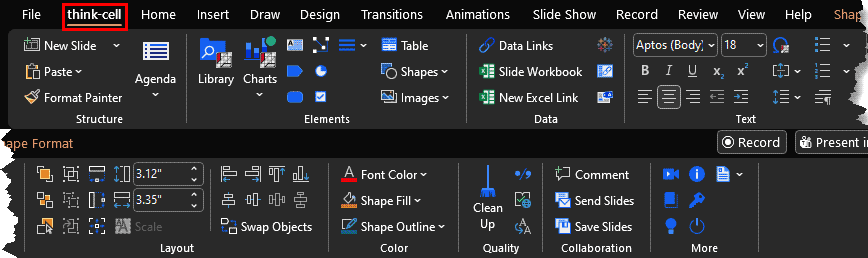
Figure 1: think-cell tab in the PowerPoint Ribbon
How to use it:
Here’s a clear, simple step-by-step list for using the Swap Objects feature in think-cell:
- Select the first object. Click the object you want to swap, such as a shape, chart, think-cell element, label, or text box. You can select any slide object.
- Hold the Shift key. Keep the Shift key pressed to allow multi-selection.
- Select the second object. Click the other slide object you want to exchange positions with.
- Access the think-cell tab of the Ribbon. With both objects selected, you head to the think-cell tab of the Ribbon.
- Choose the Swap Objects option. Click on the Swap Objects command in this tab, as shown highlighted in red within Figure 2, below.
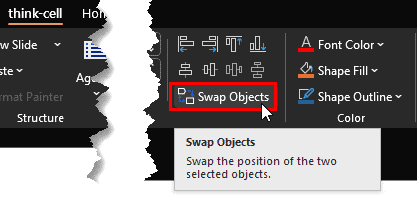
Figure 2: Swap Objects option- Review the result. The two objects instantly switch places while keeping their original size and alignment. If you are not happy with the result, click the Swap Objects command again.
The Swap Objects option in think-cell is useful because it removes the hassle of manually rearranging items on a slide. Instead of dragging objects around and trying to realign them, you can swap their positions in one step.
Why it matters:
Here’s why it helps:
- Saves time by avoiding manual positioning and cleanup.
- Keeps layouts consistent since each object keeps its size and alignment.
- Reduces errors because nothing shifts accidentally while moving items.
- Works well in busy slides where small layout changes can throw everything off.
Overall, it’s a quick way to reorder elements while keeping the slide neat and stable.
2. Scale Objects
Another amazing feature in think-cell 14 is the Scale option.
Ever tried squeezing everything on your slide just a little smaller so you can fit that one extra graphic? It’s a bit like trying to make room on a crowded picnic blanket — something has to shift, but you don’t want the whole setup to fall apart.
People usually try one of two tricks:
- Select everything and scale it together. While this technically changes their size, it often results in objects shifting from their original alignment with some objects even overlapping others. The outcome is seldom precise, and you typically need to re-adjust the layout afterward.
- Group everything, resize the group, then ungroup. This approach keeps the layout intact, but it’s slow. And here’s the real headache: once you ungroup, any animations you added disappear. It’s like packing your suitcase neatly, only to find out the airline made you unpack and repack at security.
With either of the approaches mentioned above, the text size remains unchanged. As a result, you may end up with disproportionately large text inside smaller shapes, or text that appears too small within enlarged shapes, requiring additional effort to rebalance the layout.
think-cell’s Scale option is the solution to this problem. Select a set of pictures, shapes, or text boxes, and think-cell scales them collectively as a single unit. The elements expand or contract uniformly, preserving their relative placement and alignment. This enables efficient adjustments without requiring additional layout corrections. Importantly, any existing animation effects applied to individual objects remain intact. Text scales in proportion to the resized shapes, and attributes such as border thickness adjust accordingly, resulting in a balanced and visually consistent outcome.
How to use it:
Here’s how you can use the Scale feature:
- Select the objects you want to scale. Click the first slide object (for example, a picture, a shape, or a text box). Then hold the Shift key and click the other objects you want to include. Alternatively, you can drag over a bunch of slide objects to select them. If you need to select all objects on the slide, you can click the Ctrl + A keyboard shortcut. There are plenty of other ways to select objects in PowerPoint.
- Access the think-cell tab of the Ribbon. With the objects selected, head to the think-cell tab of the Ribbon.
- Click on the Scale command, as shown highlighted in red within Figure 3, below.

Figure 3: Scale option- think-cell places a secondary Scale cursor in the bottom-right position of your selection, as shown highlighted in red within Figure 4, below.
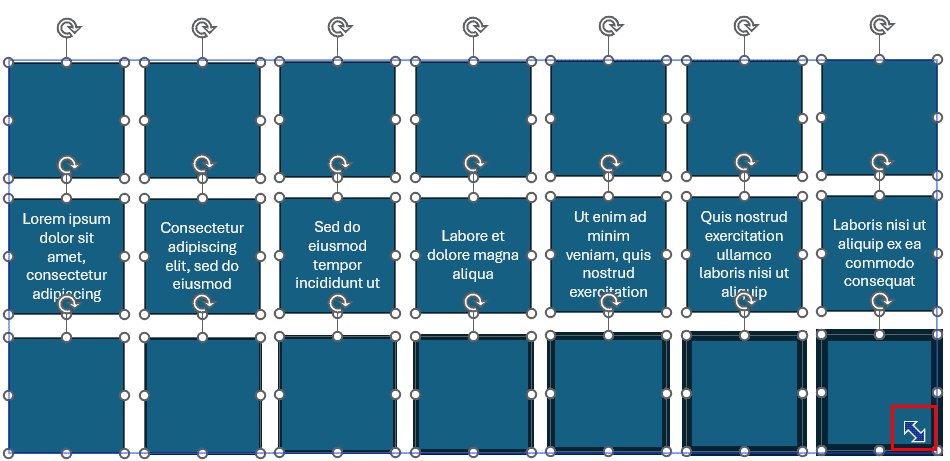
Figure 4: Secondary Scale cursor- Drag the cursor inwards or outwards to increase or decrease the size of the selected objects proportionately. think-cell will automatically resize any text or graphics within the selection.
- If everything looks right, you’re done. If not, undo by pressing Ctrl + Z and try scaling again.
Why it matters:
- Adjust slide balance without rebuilding layouts. Everything falls into place aesthetically.
- Preserve animations. Imagine not losing the time you spent creating those animations.
- End up with proportionate text sizes. Text resizes to logically fit within the resized PowerPoint slide object.
- Perfect for crowded slides needing quick adjustments. You can do an hour’s task in less than a minute.
You can use this Scale option whenever you need to make space for a new element or adjust the visual balance of a busy slide without rebuilding the layout.
3. Save Slides
Yes, you can save slides (or rather presentations) in PowerPoint, so what extras does think-cell 14’s Save Slides option offer? think-cell 14 adds a few tricks that PowerPoint doesn’t offer — a bit like having a fancy sandwich maker instead of just bread and butter.
What extras does think-cell 14 bring to the table?
- It lets you extract just the slides you want, fast. Instead of copying and pasting slides into a new file, you pick what you want, and think-cell creates a clean, ready-to-share presentation.
- It’s great for sharing only the “safe” parts. If you’re sending a deck to a client but want to leave out internal or draft slides, Save Slides makes that painless. Think of it like tearing out pages from a notebook without leaving the messy edges.
- It’s built for repeated workflows. Teams that produce many versions of the same deck (strategy, consulting, finance) can spin off clean slide subsets again and again.
Fun fact: Some teams use Save Slides more often than Save Presentation. - You are not limited to saving slides. You can also save selected slides as PDFs you can share with others.
How to use it:
Here’s how you can use the Save Slides feature:
- Decide if you want to save all slides or select a few slides. If you choose the latter option, it is best to access Slide Sorter view, as shown in Figure 5, below. Next, select the slides you want to save.

Figure 5: Select in Slide Sorter view- Access the think-cell tab of the Ribbon. With the slides selected, you head to the think-cell tab of the Ribbon. Click the Save Slides button, as shown highlighted in red within Figure 6, below.
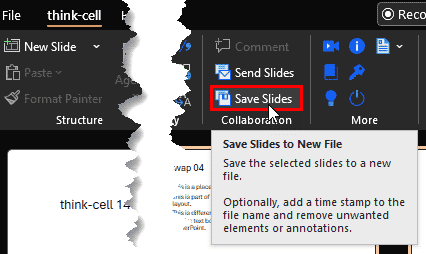
Figure 6: Save Slides using think-cell- Doing so brings up the Save Slides dialog box, as shown in Figure 7, below.
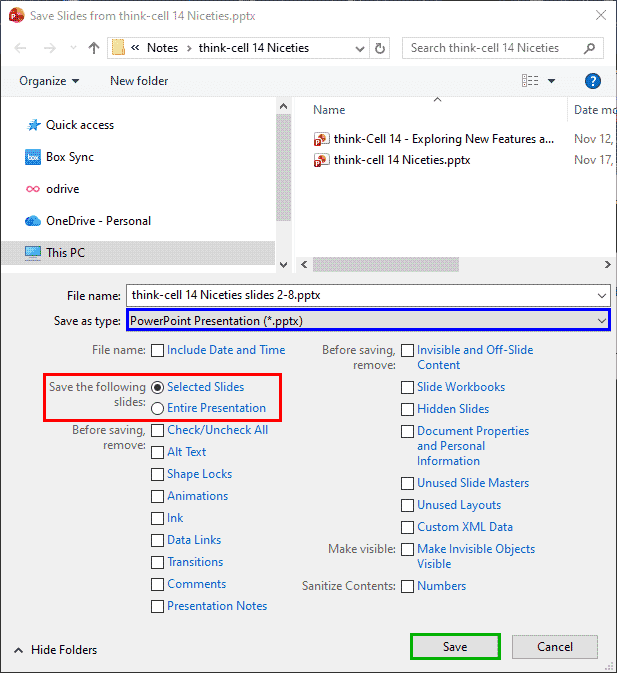
Figure 7: Save Slides dialog box- Within this dialog box, specify what you want to export, as shown highlighted in red within Figure 7, above. You can choose from:
- Selected Slides: These would be the slides you selected before summoning the Save Slides dialog box.
- Entire Presentation: The other option is all slides in your presentation.
- Next, pick your save location and the output format. Select where the slides should be saved (for example, in a chosen folder). You can also choose the PowerPoint file format. To do so, click on the Save as type dropdown list, highlighted in blue within Figure 7, above. Doing so brings up the dropdown list that you can see in Figure 8, below.

Figure 8: Save as type dropdown list- As you can see highlighted in red within Figure 8, above, the Save as type dropdown list only supports PowerPoint native file types, with one exception: the PDF. Choose the file type you want. Now accept the file name provided or type a new file name.
- Finally, click the Save button, highlighted in green within Figure 7, shown previously on this page. think-cell now creates a new presentation file containing just the selected slides or all your slides.
- Review the new file. Open the saved file to check that all required slides and think-cell elements are included and intact.
Why it matters:
- Streamlines repeated workflows (consulting, finance, strategy teams).
- Creates clean, client-ready decks in seconds.
- Offers flexibility with both PowerPoint and PDF outputs.
Final Thoughts
think-cell 14’s niceties may be subtle, but they’re game-changers. Whether you’re swapping, scaling, or saving, these features keep your slides neat, your workflow efficient, and your presentations client-ready—without the usual headaches.
The views and opinions expressed in this blog post or content are those of the authors or the interviewees and do not necessarily reflect the official policy or position of any other agency, organization, employer, or company.