
This is the print version of this page. All content is copyright Indezine.com 2000-2026.
Info-things on PowerPoint usage including tips, techniques and tutorials.
See Also:
PowerPoint and Presenting Notes
PowerPoint and Presenting Glossary
Angles is one of the Themes that’s included in some versions of Microsoft Office.
Filed Under:
Themes
Tagged as: Angles, Download, Office Themes, PowerPoint, Themes
Comments Off on Angles: PowerPoint Theme and Template
Advantage is one of the Themes that’s included in some versions of Microsoft Office.
Filed Under:
Themes
Tagged as: Advantage, Download, Office Themes, PowerPoint, Themes
Comments Off on Advantage: PowerPoint Theme and Template
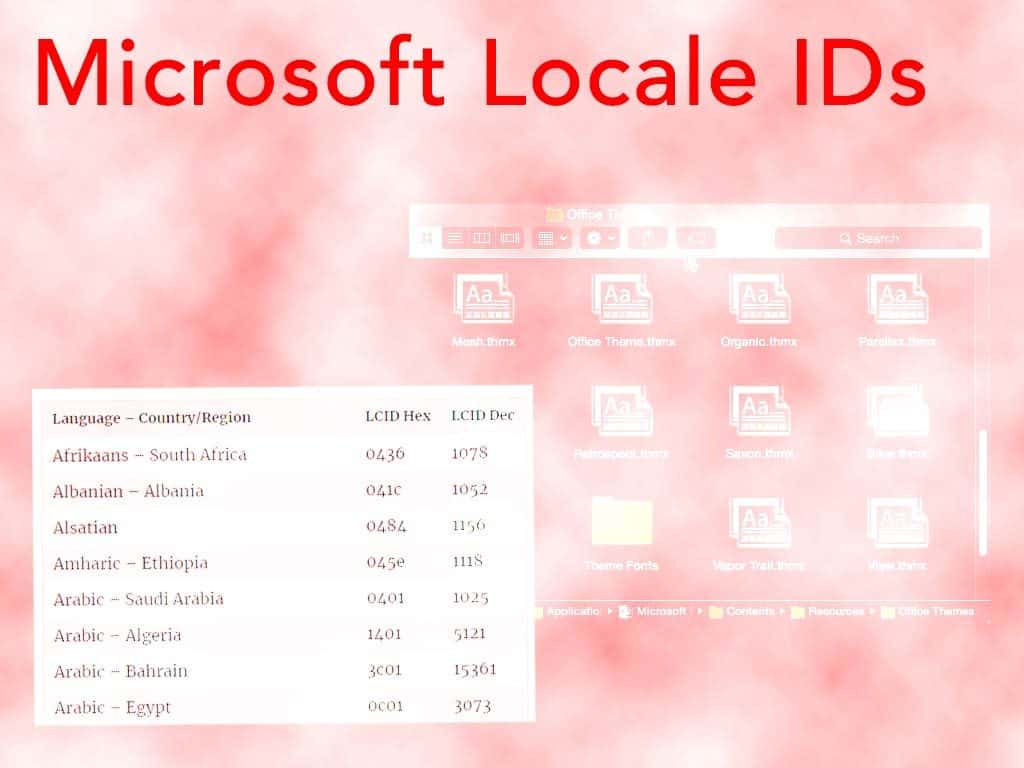
Microsoft provides a locale ID to each language it supports or has supported through its operating system, Windows. For example, the locale ID of English – United States is 1033. Wait, 1033 is the decimal locale ID for English – United States. The hexadecimal locale ID is 0409! Luckily, most of the time you only needed the decimal locale ID. But with Windows 10, Microsoft deprecated the concept of Locale Names and LCID, so they removed their MSDN documentation of the locale IDs! Unknown to the Windows team, the Office team still uses the same Windows locale IDs for folder names of the default Office Themes folders. So we found these locale IDs for you so that you know the name of the default Office Theme folders.
This content is from a deprecated MSDN page:
The following table lists the locales/languages with an assigned Locale ID (LCID). The purpose of the document is to help developers who are defining NLS services (sorting, time/date formatting, and keyboards/IMEs) for locales that do not yet have native support in Windows to avoid conflict.
[wpdatatable id=2]
| Language – Country/Region | LCID Hex | LCID Dec |
| Afrikaans – South Africa | 0436 | 1078 |
| Albanian – Albania | 041c | 1052 |
| Alsatian | 0484 | 1156 |
| Amharic – Ethiopia | 045e | 1118 |
| Arabic – Saudi Arabia | 0401 | 1025 |
| Arabic – Algeria | 1401 | 5121 |
| Arabic – Bahrain | 3c01 | 15361 |
| Arabic – Egypt | 0c01 | 3073 |
| Arabic – Iraq | 0801 | 2049 |
| Arabic – Jordan | 2c01 | 11265 |
| Arabic – Kuwait | 3401 | 13313 |
| Arabic – Lebanon | 3001 | 12289 |
| Arabic – Libya | 1001 | 4097 |
| Arabic – Morocco | 1801 | 6145 |
| Arabic – Oman | 2001 | 8193 |
| Arabic – Qatar | 4001 | 16385 |
| Arabic – Syria | 2801 | 10241 |
| Arabic – Tunisia | 1c01 | 7169 |
| Arabic – U.A.E. | 3801 | 14337 |
| Arabic – Yemen | 2401 | 9217 |
| Armenian – Armenia | 042b | 1067 |
| Assamese | 044d | 1101 |
| Azeri (Cyrillic) | 082c | 2092 |
| Azeri (Latin) | 042c | 1068 |
| Bashkir | 046d | 1133 |
| Basque | 042d | 1069 |
| Belarusian | 0423 | 1059 |
| Bengali (India) | 0445 | 1093 |
| Bengali (Bangladesh) | 0845 | 2117 |
| Bosnian (Bosnia/Herzegovina) | 141A | 5146 |
| Breton | 047e | 1150 |
| Bulgarian | 0402 | 1026 |
| Burmese | 0455 | 1109 |
| Catalan | 0403 | 1027 |
| Cherokee – United States | 045c | 1116 |
| Chinese – People’s Republic of China | 0804 | 2052 |
| Chinese – Singapore | 1004 | 4100 |
| Chinese – Taiwan | 0404 | 1028 |
| Chinese – Hong Kong SAR | 0c04 | 3076 |
| Chinese – Macao SAR | 1404 | 5124 |
| Corsican | 0483 | 1155 |
| Croatian | 041a | 1050 |
| Croatian (Bosnia/Herzegovina) | 101a | 4122 |
| Czech | 0405 | 1029 |
| Danish | 0406 | 1030 |
| Dari | 048c | 1164 |
| Divehi | 0465 | 1125 |
| Dutch – Netherlands | 0413 | 1043 |
| Dutch – Belgium | 0813 | 2067 |
| Edo | 0466 | 1126 |
| English – United States | 0409 | 1033 |
| English – United Kingdom | 0809 | 2057 |
| English – Australia | 0c09 | 3081 |
| English – Belize | 2809 | 10249 |
| English – Canada | 1009 | 4105 |
| English – Caribbean | 2409 | 9225 |
| English – Hong Kong SAR | 3c09 | 15369 |
| English – India | 4009 | 16393 |
| English – Indonesia | 3809 | 14345 |
| English – Ireland | 1809 | 6153 |
| English – Jamaica | 2009 | 8201 |
| English – Malaysia | 4409 | 17417 |
| English – New Zealand | 1409 | 5129 |
| English – Philippines | 3409 | 13321 |
| English – Singapore | 4809 | 18441 |
| English – South Africa | 1c09 | 7177 |
| English – Trinidad | 2c09 | 11273 |
| English – Zimbabwe | 3009 | 12297 |
| Estonian | 0425 | 1061 |
| Faroese | 0438 | 1080 |
| Farsi | 0429 | 1065 |
| Filipino | 0464 | 1124 |
| Finnish | 040b | 1035 |
| French – France | 040c | 1036 |
| French – Belgium | 080c | 2060 |
| French – Cameroon | 2c0c | 11276 |
| French – Canada | 0c0c | 3084 |
| French – Democratic Rep. of Congo | 240c | 9228 |
| French – Cote d’Ivoire | 300c | 12300 |
| French – Haiti | 3c0c | 15372 |
| French – Luxembourg | 140c | 5132 |
| French – Mali | 340c | 13324 |
| French – Monaco | 180c | 6156 |
| French – Morocco | 380c | 14348 |
| French – North Africa | e40c | 58380 |
| French – Reunion | 200c | 8204 |
| French – Senegal | 280c | 10252 |
| French – Switzerland | 100c | 4108 |
| French – West Indies | 1c0c | 7180 |
| Frisian – Netherlands | 0462 | 1122 |
| Fulfulde – Nigeria | 0467 | 1127 |
| FYRO Macedonian | 042f | 1071 |
| Galician | 0456 | 1110 |
| Georgian | 0437 | 1079 |
| German – Germany | 0407 | 1031 |
| German – Austria | 0c07 | 3079 |
| German – Liechtenstein | 1407 | 5127 |
| German – Luxembourg | 1007 | 4103 |
| German – Switzerland | 0807 | 2055 |
| Greek | 0408 | 1032 |
| Greenlandic | 046f | 1135 |
| Guarani – Paraguay | 0474 | 1140 |
| Gujarati | 0447 | 1095 |
| Hausa – Nigeria | 0468 | 1128 |
| Hawaiian – United States | 0475 | 1141 |
| Hebrew | 040d | 1037 |
| Hindi | 0439 | 1081 |
| Hungarian | 040e | 1038 |
| Ibibio – Nigeria | 0469 | 1129 |
| Icelandic | 040f | 1039 |
| Igbo – Nigeria | 0470 | 1136 |
| Indonesian | 0421 | 1057 |
| Inuktitut | 045d | 1117 |
| Irish | 083c | 2108 |
| Italian – Italy | 0410 | 1040 |
| Italian – Switzerland | 0810 | 2064 |
| Japanese | 0411 | 1041 |
| K’iche | 0486 | 1158 |
| Kannada | 044b | 1099 |
| Kanuri – Nigeria | 0471 | 1137 |
| Kashmiri | 0860 | 2144 |
| Kashmiri (Arabic) | 0460 | 1120 |
| Kazakh | 043f | 1087 |
| Khmer | 0453 | 1107 |
| Kinyarwanda | 0487 | 1159 |
| Konkani | 0457 | 1111 |
| Korean | 0412 | 1042 |
| Kyrgyz (Cyrillic) | 0440 | 1088 |
| Lao | 0454 | 1108 |
| Latin | 0476 | 1142 |
| Latvian | 0426 | 1062 |
| Lithuanian | 0427 | 1063 |
| Luxembourgish | 046e | 1134 |
| Malay – Malaysia | 043e | 1086 |
| Malay – Brunei Darussalam | 083e | 2110 |
| Malayalam | 044c | 1100 |
| Maltese | 043a | 1082 |
| Manipuri | 0458 | 1112 |
| Maori – New Zealand | 0481 | 1153 |
| Mapudungun | 0471 | 1146 |
| Marathi | 044e | 1102 |
| Mohawk | 047c | 1148 |
| Mongolian (Cyrillic) | 0450 | 1104 |
| Mongolian (Mongolian) | 0850 | 2128 |
| Nepali | 0461 | 1121 |
| Nepali – India | 0861 | 2145 |
| Norwegian (Bokmål) | 0414 | 1044 |
| Norwegian (Nynorsk) | 0814 | 2068 |
| Occitan | 0482 | 1154 |
| Oriya | 0448 | 1096 |
| Oromo | 0472 | 1138 |
| Papiamentu | 0479 | 1145 |
| Pashto | 0463 | 1123 |
| Polish | 0415 | 1045 |
| Portuguese – Brazil | 0416 | 1046 |
| Portuguese – Portugal | 0816 | 2070 |
| Punjabi | 0446 | 1094 |
| Punjabi (Pakistan) | 0846 | 2118 |
| Quecha – Bolivia | 046B | 1131 |
| Quecha – Ecuador | 086B | 2155 |
| Quecha – Peru | 0C6B | 3179 |
| Rhaeto-Romanic | 0417 | 1047 |
| Romanian | 0418 | 1048 |
| Romanian – Moldava | 0818 | 2072 |
| Russian | 0419 | 1049 |
| Russian – Moldava | 0819 | 2073 |
| Sami (Lappish) | 043b | 1083 |
| Sanskrit | 044f | 1103 |
| Scottish Gaelic | 043c | 1084 |
| Sepedi | 046c | 1132 |
| Serbian (Cyrillic) | 0c1a | 3098 |
| Serbian (Latin) | 081a | 2074 |
| Sindhi – India | 0459 | 1113 |
| Sindhi – Pakistan | 0859 | 2137 |
| Sinhalese – Sri Lanka | 045b | 1115 |
| Slovak | 041b | 1051 |
| Slovenian | 0424 | 1060 |
| Somali | 0477 | 1143 |
| Sorbian | 042e | 1070 |
| Spanish – Spain (Modern Sort) | 0c0a | 3082 |
| Spanish – Spain (Traditional Sort) | 040a | 1034 |
| Spanish – Argentina | 2c0a | 11274 |
| Spanish – Bolivia | 400a | 16394 |
| Spanish – Chile | 340a | 13322 |
| Spanish – Colombia | 240a | 9226 |
| Spanish – Costa Rica | 140a | 5130 |
| Spanish – Dominican Republic | 1c0a | 7178 |
| Spanish – Ecuador | 300a | 12298 |
| Spanish – El Salvador | 440a | 17418 |
| Spanish – Guatemala | 100a | 4106 |
| Spanish – Honduras | 480a | 18442 |
| Spanish – Latin America | 580a | 22538 |
| Spanish – Mexico | 080a | 2058 |
| Spanish – Nicaragua | 4c0a | 19466 |
| Spanish – Panama | 180a | 6154 |
| Spanish – Paraguay | 3c0a | 15370 |
| Spanish – Peru | 280a | 10250 |
| Spanish – Puerto Rico | 500a | 20490 |
| Spanish – United States | 540a | 21514 |
| Spanish – Uruguay | 380a | 14346 |
| Spanish – Venezuela | 200a | 8202 |
| Sutu | 0430 | 1072 |
| Swahili | 0441 | 1089 |
| Swedish | 041d | 1053 |
| Swedish – Finland | 081d | 2077 |
| Syriac | 045a | 1114 |
| Tajik | 0428 | 1064 |
| Tamazight (Arabic) | 045f | 1119 |
| Tamazight (Latin) | 085f | 2143 |
| Tamil | 0449 | 1097 |
| Tatar | 0444 | 1092 |
| Telugu | 044a | 1098 |
| Thai | 041e | 1054 |
| Tibetan – Bhutan | 0851 | 2129 |
| Tibetan – People’s Republic of China | 0451 | 1105 |
| Tigrigna – Eritrea | 0873 | 2163 |
| Tigrigna – Ethiopia | 0473 | 1139 |
| Tsonga | 0431 | 1073 |
| Tswana | 0432 | 1074 |
| Turkish | 041f | 1055 |
| Turkmen | 0442 | 1090 |
| Uighur – China | 0480 | 1152 |
| Ukrainian | 0422 | 1058 |
| Urdu | 0420 | 1056 |
| Urdu – India | 0820 | 2080 |
| Uzbek (Cyrillic) | 0843 | 2115 |
| Uzbek (Latin) | 0443 | 1091 |
| Venda | 0433 | 1075 |
| Vietnamese | 042a | 1066 |
| Welsh | 0452 | 1106 |
| Wolof | 0488 | 1160 |
| Xhosa | 0434 | 1076 |
| Yakut | 0485 | 1157 |
| Yi | 0478 | 1144 |
| Yiddish | 043d | 1085 |
| Yoruba | 046a | 1130 |
| Zulu | 0435 | 1077 |
| HID (Human Interface Device) | 04ff | 1279 |
Filed Under:
Reference
Tagged as: Locale Ids, Microsoft, PowerPoint, Themes
Comments Off on Microsoft Locale IDs
Slide titles in PowerPoint are more than just labels—they structure your presentation, enhance accessibility, and streamline navigation. But what if a visible title disrupts your slide design? Instead of deleting it entirely, you can opt for hidden titles, retaining all their benefits while keeping your layout clean.
In this guide, we explore why hidden slide titles matter and share effective methods to conceal them without compromising functionality.
Why Slide Titles Matter (Like, A Lot!)
Why No Slide Titles?
Reasons for Invisible or Hidden Slide Titles
1. Duplicate Slide Layouts
2. Use the Selection Task Pane
Whether you’re refining searchability, ensuring accessibility, or optimizing for PowerPoint features like Zoom and custom shows, understanding the right approach will help you strike the perfect balance between aesthetics and usability. Imagine walking into a bookstore where every book cover is blank. No titles, no names, just a bunch of mystery volumes stacked on shelves. How would you find the one you need? Exactly—that’s why slide titles are non-negotiable!
First off, they tell your audience what’s on the slide (kind of like how a movie poster hints at the plot). Secondly, they help keep your presentation organized. Think of PowerPoint’s Outline view like a table of contents—without slide titles, it’s like a jumbled mess of pages with no headings. And trust me, Outline-view lovers will not be pleased to see slides floating around without labels.
Want proof? Check out Figure 1, below—you’ll spot the red-highlighted areas screaming, “Help! We need titles!”
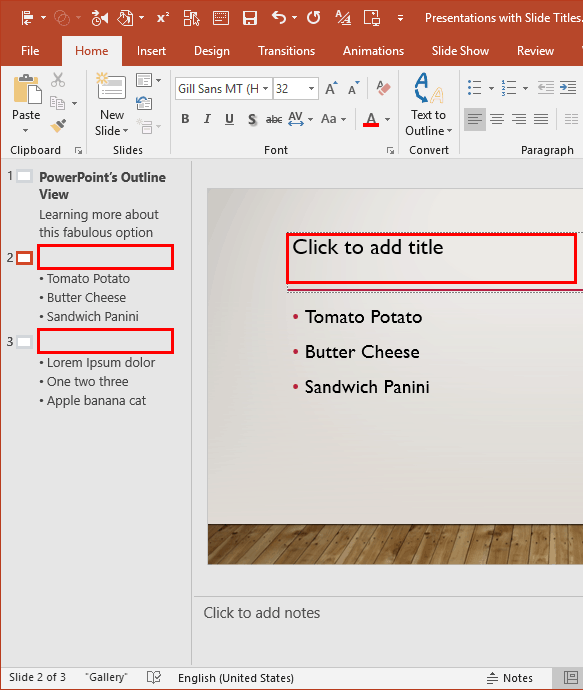
Figure 1: Missing Slide Titles
Slide titles aren’t just about keeping things tidy—they’re a key accessibility feature that makes presentations more user-friendly for everyone.
Filed Under:
Techniques
Tagged as: Guidelines, Hide Slide Titles, PowerPoint, Techniques, Tutorials
Animated GIFs used to be very popular like twenty, or twenty-five years ago, because they were small in size, and worked well in a lower-bandwidth world. They were created using multiple images, which were similar to each other, but still had some differences. As the images played like a flipbook, they provided an easy illusion of movement. And, as suddenly as they had become popular, the animated GIF faded away.
Filed Under:
Techniques
Tagged as: Animated GIFs, Graphics, Jamie Garroch, PowerPoint, Resources
Comments Off on Create Animated GIFs from PowerPoint Slides
Microsoft and the Office logo are trademarks or registered trademarks of Microsoft Corporation in the United States and/or other countries.