This is the print version of this page. All content is copyright Indezine.com 2000-2026.
Info-things on PowerPoint usage including tips, techniques and tutorials.
See Also:
PowerPoint and Presenting Notes
PowerPoint and Presenting Glossary
By Barrera Alcova
This post is not really about PowerPoint and presenting, but it is about keeping your files and data safe, including your PowerPoint content”
Keeping your valuable data like important documents, passwords, financial and other personal information safe and protected from outsider has long been a priority of businesses and organizations, but it’s increasingly significant for consumers and individuals to understand the importance of data protection and sound practices to keep your sensitive personal information safe and secure.

Image: Pickit
Filed Under:
Guest Post
Tagged as: Guest Post, Passwords, Security
Comments Off on 9 Security Tips to Keep Your Data Safe
Original content by AlexAnndra Ontra and James Ontra
Enhanced by Geetesh Bajaj
In the last part of this Presentation Management series of posts, we explored how training can start your conversation about presentation management. In this part, we look at how your presentation management strategy can only be as good as the content you collect and provide.
Your presentation management strategy is only as good as the content provided.
Systems, protocols, features, functions, cutting-edge technology, and good intentions are all great. But content is king! Both U.S. Bank and Cooper Standard introduced slide libraries with the best content – branded, up to date, accurate, well-designed, well-written content. When word got out at U.S. Bank that there was a library that had all the good content, and all you had to do was drag and drop, requests for access increased, and the presentation management mentality started to spread.
Content is how you balance the enterprise with the individual – the strategic with the tactical.
You can start from scratch and create all-new content. Luckily, that’s not a requirement. Most of this content, enterprise and tactical, already exists. It’s already saved on your network somewhere, embedded in other presentations, brochures, videos, etc. So it’s a matter of identifying it and then including it in your presentation management initiative.

Filed Under:
Guest Post
Tagged as: AlexAnndra Ontra, Geetesh Bajaj, Guest Post, James Ontra, Presentation Management, Shufflrr
Comments Off on Presentation Management 17: Collect Content
Original content by AlexAnndra Ontra and James Ontra
Enhanced by Geetesh Bajaj
In the last part of this Presentation Management series of posts, we explored the culture of presentation content management. In this part, we look at how proper training can help overcome many challenges.
Training provides a two-fold opportunity.

Filed Under:
Guest Post
Tagged as: AlexAnndra Ontra, Geetesh Bajaj, Guest Post, James Ontra, Presentation Management, Shufflrr
A reader asked how they could create a custom Theme in PowerPoint and share it with others in their company.
Now, creating a theme is a specialized art and although you can technically create a Theme or template, it’s not the same as commissioning a subject-matter expert to create one for you. Now that I have provided this caveat, let’s get to the part where you can create a Theme.
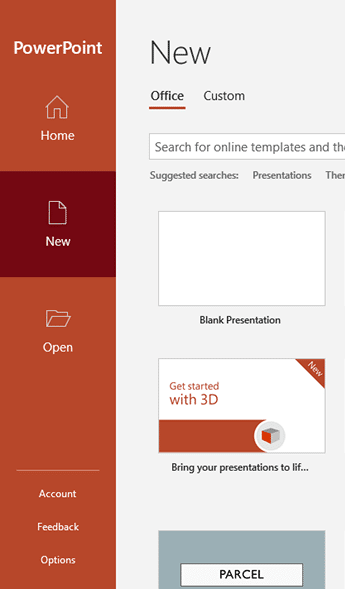
To create a custom theme, you will have to start with a basic theme such as the default Office Theme. This is applied when you choose the Blank Presentation option in the Presentation Gallery within PowerPoint, as can be seen in Figure 1, below.
Filed Under:
Techniques
Tagged as: Office Themes, PowerPoint, Themes, Tutorials
Comments Off on Save a Custom Theme in PowerPoint
Original content by AlexAnndra Ontra and James Ontra
Enhanced by Geetesh Bajaj
In the last part of this Presentation Management series of posts, we looked at how we can make our presentation content intelligent. In this part, we explore the culture of presentation management.
Change is hard, especially in a large organization. People are afraid of the unknown. The familiar is our security blanket. Knowing where we will be and what we will be doing tomorrow makes us feel safe. Any effort to change that, especially in our jobs–our livelihoods–will be resisted.
This is one of those strange ironies of life. Most of us know that change is imminent, and we still resist change. Here’s a famous quote about change.
Remember that the only constant in life is change.
– Gautama Buddha
Filed Under:
Guest Post
Tagged as: AlexAnndra Ontra, Geetesh Bajaj, Guest Post, James Ontra, Presentation Management, Shufflrr
Microsoft and the Office logo are trademarks or registered trademarks of Microsoft Corporation in the United States and/or other countries.