
Ampler Charts steps into a familiar battlefield—the world of constantly changing business presentations, where charts are updated, re‑aligned, and re‑built right until the final meeting. Whether it’s a Gantt chart that refuses to stay in sync or a waterfall chart that collapses with every new number, presentation professionals have long needed a faster, more reliable way to build and revise complex visuals. This review explores how Ampler Charts addresses that challenge by bringing structured, PowerPoint‑native chart creation to users who value clarity, speed, and effortless editability.

Introduction
Why Ampler Charts?
Downloading and Installing Ampler Charts
First Impressions and Using Ampler Charts
Three-Area Functionality
Pricing and Licensing
Final Thoughts
Introduction
Walk into any consulting firm or planning meeting, and you’ll probably find someone fixing a chart in PowerPoint. It could be a Gantt chart where the timelines no longer align, a waterfall chart that shifts every time a statistic changes, or a Mekko chart that took so long to build that nobody wants to edit it again.
Some of that may sound a little exaggerated, but the larger point still stands. For years, presentation professionals have looked for tools that make chart creation easier and less time-consuming. That’s where Ampler Charts steps in.
Developed by the team at Ampler, the Ampler Charts add-in is a subset of the larger Ampler add-in and is designed to make it easier to build business charts directly inside PowerPoint. Instead of moving between different applications or spending time adjusting shapes manually, users can create and edit charts within a more structured workflow.
Why Ampler Charts?
So, why do you need Ampler Charts? Why not use the charting options built inside PowerPoint? The answer lies not so much in what PowerPoint can do, but in how the role of business charts has changed over time. PowerPoint’s built-in charting tools work well for many situations, but today’s business users often need something more flexible. In most organizations, charts are edited repeatedly as numbers change, timelines move, and presentations evolve right up to the final meeting. Older presentations often relied on simple bar and pie charts that were built mainly to display information. Today, charts are expected to do much more. They need to be editable, easy to update, and ready to fit into fast-moving presentation workflows. Ampler Charts seems to have been built with that reality in mind.
Before we proceed, a brief note about Ampler. The company is based in Copenhagen, Denmark. Our primary contact for this review was Sune Høj Kodahl, and we also had the opportunity to speak with Morten Gadegaard, who demonstrated the product and answered many questions. Our thanks to both Sune and Morten for their assistance during the review process.
Downloading and Installing Ampler Charts
Users can download a trial version of the Ampler Charts installer directly from the Ampler website, as shown in Figure 1, below.

Figure 1: Ampler Charts download
The setup wizard guides users through the installation with minimal complexity. If you install the entire suite or Ampler for PowerPoint, you can see the Ampler tab on the PowerPoint Ribbon. Notice the Ampler Charts option within this tab, highlighted in red within Figure 2, below.

Figure 2: Ampler tab of the Ribbon
On the other hand, if you install only Ampler Charts, you will find the Ampler Charts group in the Home tab of the Ribbon, as shown highlighted in red within Figure 3, below.

Figure 3: Ampler Charts group in the Home tab
The activation process for Ampler Charts is simple, particularly for users working with trial or licensed versions.
Do tools like Ampler Charts save time?
 A Microsoft-sponsored knowledge-sharing study found that employees spend 11–14% of their time searching for or recreating information, equivalent to several weeks of lost productivity annually. Presentation professionals will recognize a similar pattern with charts. Building the first version is often straightforward enough. The challenge comes when the chart needs to be revised for the fifth, tenth, or twentieth time as projects evolve and numbers change. This is one of the areas where tools such as Ampler Charts aim to help.
Years ago, creating a waterfall chart in PowerPoint often meant drawing a collection of rectangles, aligning them carefully, and hoping nobody asked for a data update. If they did, the process usually began all over again. Products such as Ampler Charts exist largely because presentation professionals grew tired of repeating that exercise.
Organizations with managed IT policies may need administrator involvement during deployment. For most individual users, however, the installation process should present few challenges.
First Impressions and Using Ampler Charts
Ampler Charts focuses heavily on business and consulting-style charts, including:
Gantt charts
Waterfall charts
Mekko charts
Timeline visuals
Strategy diagrams
Project planning charts
As shown in Figure 3, previously on this page, Ampler Charts can also create familiar chart types such as column, bar, line, doughnut, and pie charts. Its primary value, however, lies in business and project-oriented charts that are more time-consuming to build in PowerPoint and can be created more efficiently using Ampler Charts. Also, after spending time with the product, it becomes clear that the experience is not just about the charts themselves, but also about how efficiently they fit into the PowerPoint workflow.
For example, creating a Gantt chart becomes a guided process. You start with a Gantt chart already in place, as shown in Figure 4, below.
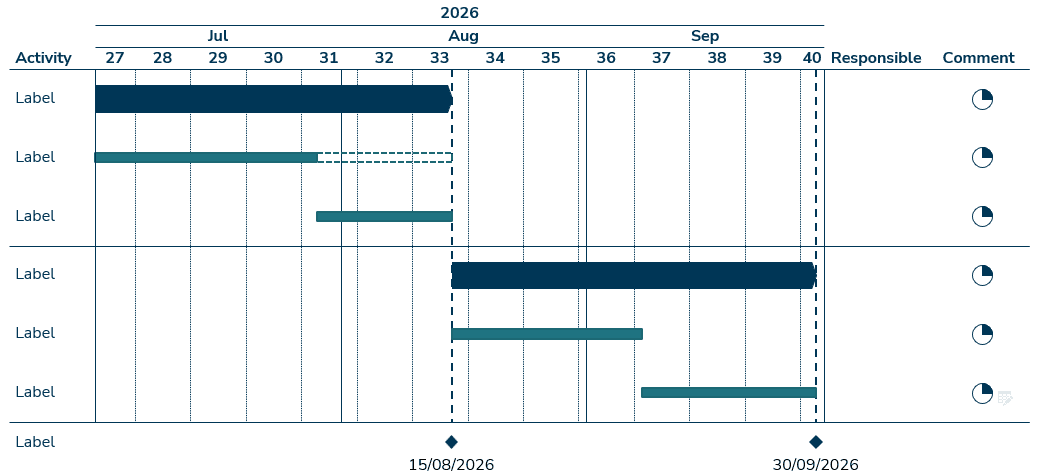
Figure 4: Basic Gantt chart template in place
Creating any chart typically follows a simple pattern. You insert a chart, enter or link the data, and then refine the presentation using formatting and annotation tools.
Three-Area Functionality
Most of the functionality in Ampler Charts is organized around a straightforward workflow. First, select the chart type you want to create and click on the slide to insert it. Once the chart has been added, you can access the relevant tools through the following options:
- Left-click (or primary mouse-click) for formatting,
- Right-click (or secondary mouse-click) for chart decoration and annotations, and
- Access the datasheet for managing the underlying numbers.
As with many Office applications, the menus in Ampler Charts are contextual. The options you see depend on what you select. Clicking the chart boundary provides access to chart-level settings, while selecting elements such as axes, labels, or bars exposes options specific to those parts of the chart.
Once you understand this structure, navigating the product becomes quite intuitive. Users define tasks, timelines, and milestones through structured inputs, and the software handles much of the visual formatting automatically. This reduces the endless alignment adjustments that PowerPoint users know all too well.
Let us now individually look at the functionality features using the same basic Gantt chart we created:
1. Using the Left-click Menu
When you select a chart element, Ampler Charts displays a set of contextual options, as shown in Figure 5, below.
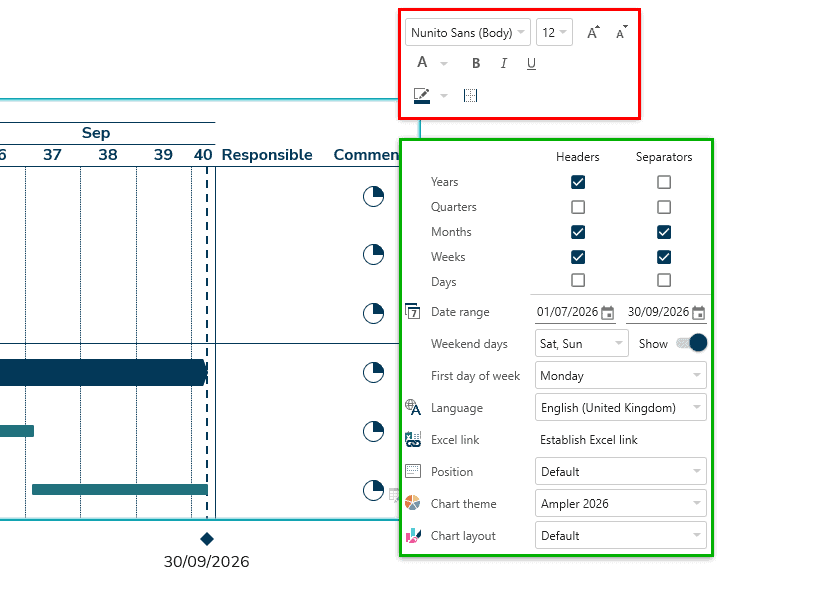
Figure 5: Left-click options for Ampler Charts
Depending on the element selected, you may see two flyout menus. The smaller flyout, highlighted in red within Figure 5, above, serves a purpose similar to PowerPoint’s Mini Toolbar and primarily provides text formatting options.
The larger flyout, highlighted in green, contains a wider range of chart-specific settings and commands. Many of these options include drop-down lists with predefined values, making it easy to apply changes without having to enter settings manually. As you make changes, the chart updates immediately, allowing you to see the results and refine the formatting as needed.
2. Using the Right-click Menu
The right-click menu is also context-sensitive. Select either the chart as a whole or a specific chart element, and then right-click to access the relevant options, as shown in Figure 6, below.

Figure 6: Right-click options for Ampler Charts
You will then find options to make some chart elements visible or invisible, as shown highlighted in green within Figure 6, above. You also find the Establish Excel link, that lets you connect this chart to data from an existing Excel source.
3. Access datasheet
Even if you do not want to link to an existing Excel sheet, all Ampler charts have a datasheet at the backend that contains data that reflects in the chart. To view this datasheet, you can click on the Open datasheet option, as shown highlighted in red within Figure 6.
Doing so brings up the Excel sheet shown in Figure 7, below. Do note that you really don’t have to edit values in the Excel sheet, and almost anything can be edited directly inside the chart. However, it is great that you can choose what works best for you: editing on the chart itself or editing values within the Excel sheet.

Figure 7: Edit inside the chart or within Excel
It is these simple touches that have been created for everyday chart creators that set Ampler Charts apart. Business users rarely create charts purely for artistic reasons. Charts exist to communicate decisions, strategies, timelines, and risks. Ampler Charts seem to be designed with this practical mindset in mind. The focus is less about decorative visual flair and more about clarity, speed, and editability.
And editability matters enormously. Anyone who has ever received “just one small change” from a client minutes before a presentation understands the importance of charts that can adapt quickly without falling apart visually.
The interface itself is modern and relatively approachable. Experienced PowerPoint users will likely become comfortable quickly, since it rarely appears that you are not using PowerPoint. This seamless integration with PowerPoint is great for new users, although they may still require a short learning curve to understand the product’s large repertoire of options.
Pricing and Licensing
At €12 per month for the standalone charting product, Ampler Charts is clearly aimed at users who create business charts regularly rather than occasional PowerPoint users. For consultants, analysts, project managers, and presentation specialists who spend significant time building and updating charts, the value proposition is less about the subscription cost and more about the time saved on recurring chart revisions. The value comes from reducing repetitive chart maintenance rather than simply creating the initial chart faster.
One more thing worth noting: Ampler Charts is competitively priced. It may, in fact, be the most affordable charting add-in for PowerPoint. Worth noting: Ampler has an AI offering in the pipeline, per Sune.
While Ampler Charts can be licensed as a standalone product, prospective customers should also consider the broader Ampler Suite. At €30 per month, the suite includes additional productivity tools across Microsoft Office and may offer greater value for users who work extensively within PowerPoint, Excel, Word, and Outlook. That said, starting with Ampler Charts alone is a sensible way to evaluate the platform and determine whether it meets your needs.
For occasional presenters, the investment may feel significant. For users who create and update charts regularly, however, the value proposition is easier to understand, particularly when chart revisions are a frequent part of the workflow.
There is also a broader consideration. Many organizations are looking to reduce the number of add-ins and productivity tools they support across Microsoft Office. In that context, Ampler Suite’s wider product portfolio may be of interest to companies that prefer a more integrated approach rather than relying on multiple standalone solutions.
Final Thoughts
As with any productivity tool, the value of Ampler Charts depends largely on how you work. If chart creation and maintenance are a regular part of your workflow, the product offers a structured approach that can save both time and effort.