
This is the print version of this page. All content is copyright Indezine.com 2000-2026.
Info-things on PowerPoint usage including tips, techniques and tutorials.
See Also:
PowerPoint and Presenting Notes
PowerPoint and Presenting Glossary
In previous tutorials, we looked at getting started with the Synology DS920+. We also explored how you can start and shut down your Synology NAS. However, to make those posts concise, we never looked at setting up a new Synology NAS. We remedy that situation in this post on setting up the Synology DS920+ NAS.
You first access your Synology NAS device by visiting the Synology Find site in your web browser. If all goes well, and if you have connected your cables properly, you should see the Find Your Synology NAS screen in your browser, as shown below.
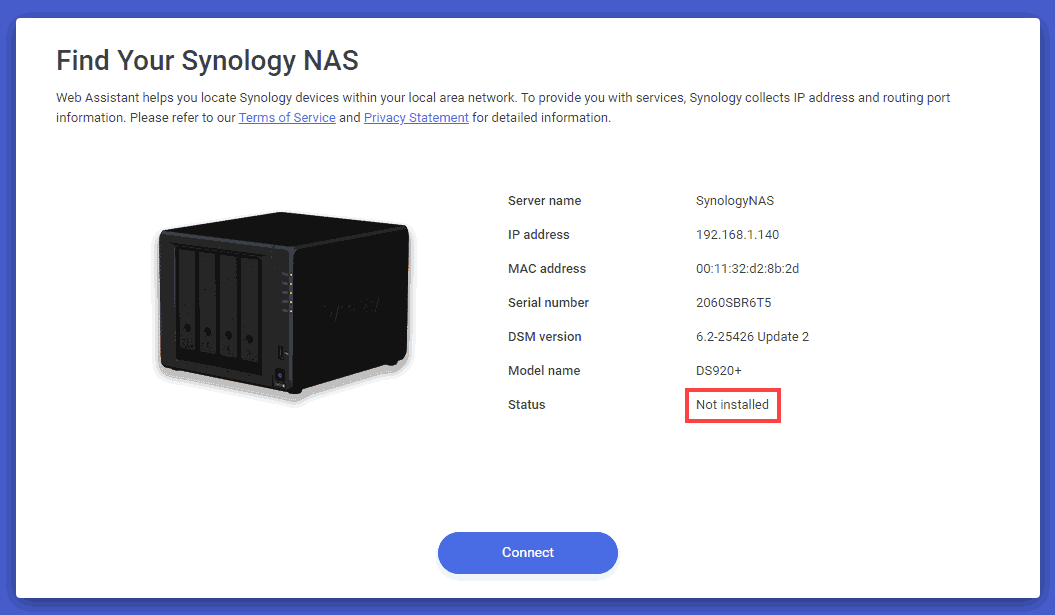
Synology NAS Not installed
Filed Under:
Hardware
Tagged as: DiskStation Manager, Hardware, Storage, Synology
Comments Off on Setting up the Synology DS920+
Typically, NAS devices such as the ones from Synology are meant to be running all the time, but there may be times you want to shut them down. You may want to add a new HDD or add RAM, or you may just want to shut it down. In this post, I’ll look at how you can power up and shut down Synology’s DS920+ NAS device. However, this process works in almost the same way for all Synology devices.
Do you have hundreds of thousands of PowerPoint presentations, work files, or any other files that you need to be safely stored and accessed? Then you should look at a complete NAS device such as the Synology DS920+ NAS I reviewed a while ago.
To power up your Synology, you can press the Power button in the front, as shown in both the pictures below. The picture on the left shows a latent button and the picture on the right shows the button after the Synology NAS is powered on.
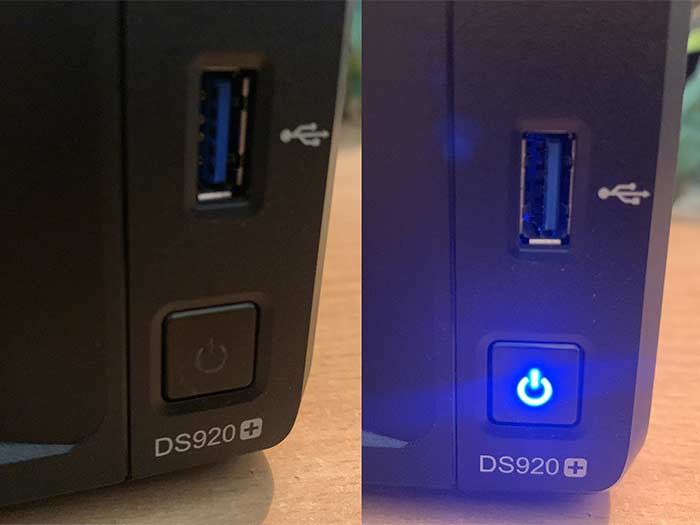
Comments Off on Launching and Shutting Down Your Synology NAS
If you are like other people who run a business, or even if you work from home in these lockdown times, you will find that you need tons of data accessible to you all the time. I know because I had to move so much data home because my office was shut down for more than a month during the lockdown days, and I needed all my data to ensure that my business was working smoothly. Yes, cloud storage is an amazing option but there are no unlimited storage options anymore online, and even if they existed, you don’t want to download twenty similar files to locate the one large file you needed.
And yes, I have several external hard drives and NAS from the likes of Seagate, Western Digital, and other providers&mdash:but they don’t last as much as they used to ten years ago! And I always use a RAID or at least more than one drive to store all data. So, if one of my drives go south, I only have one copy of the data left (and another copy on the cloud), but I need to get a replacement drive to ensure that the data is copied again and saved until I lose another drive!
There has to be a better option, and many business associates have recommended a more capable NAS solution, such as the ones provided by Synology. So, when Synology contacted me to do a review of one of their newest NAS, I thought I could hit two birds with one stone. I could play with the Synology NAS solution and also get my backups in order. My contact at Synology was Andrew Huang. Thank you, Andrew, for patiently answering all my questions.
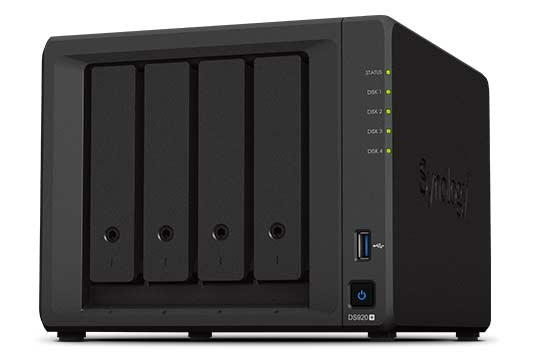
Andrew sent me a Synology DS920+ NAS.
Filed Under:
Hardware
Tagged as: Backup, Hardware, Storage, Synology
Comments Off on Getting Started with the Synology DS920+
Original content by AlexAnndra Ontra and James Ontra
Enhanced by Geetesh Bajaj
In the last part of this Presentation Management series of posts, we explored sharing and presenting options. In this part, we look at the last three aspects of a presentation’s life cycle: social engagement, reporting, and updating.
PowerPoint is going social!
– Kristin Shevis, Chief Customer Officer for Clarifai, exclaimed back in 2018, when we first explained the social capability of our Shufflrr app.
It’s like Facebook or Instagram, except the subject matter is your presentation content instead of your vacation pictures. (Yeah, I know, I’d prefer to see sandy beaches over org charts any day.) Users can follow, like, rate, comment, and converse about files and slides.
Here are some more aspects of using social engagement:
That’s why presentation management has commenting and other social features built-in, to keep the feedback loop continual and timely.

Filed Under:
Guest Post
Tagged as: AlexAnndra Ontra, Geetesh Bajaj, Guest Post, James Ontra, Presentation Management, Reporting, Shufflrr, Social, Updating
Comments Off on Presentation Management 21: Social Engagement, Reporting, and Updating
Original content by AlexAnndra Ontra and James Ontra
Enhanced by Geetesh Bajaj
In the last part of this Presentation Management series of posts, we looked at the distribution of presentation content. In this part, we look at two more aspects of a presentation’s life cycle: sharing and presenting.
Sharing refers to how you share or send files to your clients and other third parties outside of your organization. This is especially important for sales, marketing, and investor relations. Those presentations directly affect the company’s image and bottom line.
This may appear like a seemingly mundane task, but it has huge implications for productivity. Files with images and videos tend to get too large and will be stripped from most corporate email systems. The file-size limit is different for every organization, so you don’t really know if your file will get through or not. Sharing gives media ad sales reps an easy way to send large video files to advertisers. Travel clients have high-resolution pictures and videos in their presentations, too. Anyone in any industry can have big files. The process of sharing these presentations is simple:
Then, you can track the consumption of the files. Did my client open it, download it, read it, ignore it–or maybe she just never received it? It’s productive to know how engaged your client is with the information you share because that will tell you how interested they are, and then help guide your next steps.

Filed Under:
Guest Post
Tagged as: AlexAnndra Ontra, Geetesh Bajaj, Guest Post, James Ontra, Presentation Management, Presenting, Share, Shufflrr
Comments Off on Presentation Management 20: Sharing and Presenting
Microsoft and the Office logo are trademarks or registered trademarks of Microsoft Corporation in the United States and/or other countries.