
From PresenterMedia, you can add specialized, pre-designed slide layouts found within their AI Presentation Maker and Presentation Builder tools. They are designed to solve the “blank slide” problem by providing professional compositions that automatically integrate graphics and AI-generated text. However, you do not have to start by using any of these tools, and can get started with a simple clipart search, and evolve further from there onwards.
Who is PresenterMedia?
PresenterMedia is a creative design company based in Sioux Falls, South Dakota, that specializes in high-end, customizable presentation resources.
They are widely known for their massive library of animated PowerPoint templates, 3D clipart, and video backgrounds. Rather than just offering static slides, their focus is on “bringing presentations to life” through motion and 3D depth.
My contact at PresenterMedia for this feature was Judd Albrecht. Thank you, Judd.
So, what will we cover in this feature? Essentially, we will look at four distinct concepts:
- Log in to your PresenterMedia account.
- Optionally, source your company or branded colors from your PowerPoint template.
- Create your own Preset Theme of company or branded colors in PresenterMedia.
- Choose a graphic or animation, and export as a PowerPoint presentation.
1. Log in or Sign up for PresenterMedia
First, you need to get access to PresenterMedia. Follow these steps:
- Access the PresenterMedia site and log in. If you do not have an account, you can immediately download free sample items to test these features with no sign-up required. For full access to the entire library, PresenterMedia offers a 1-month subscription with a 30-day money-back guarantee.
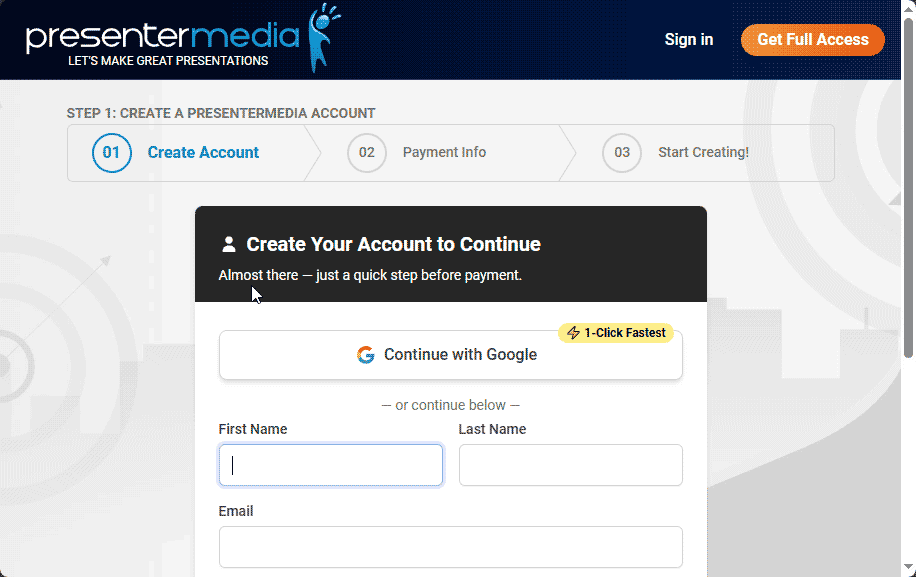
Figure 1: Sign up for a 30-day trial
When you sign up for the 30-day trial (or one-month access plan) of PresenterMedia, you essentially get full access to the platform’s creative toolkit for building presentations.
2. Source Color Values from PowerPoint
Yes, you can do this task later, along with your other tasks, but it’s best to create this PresenterMedia Preset Theme right at the onset so that you can ensure all content you create is brand aware.
PowerPoint Colors in PresenterMedia?
You can import your PowerPoint Theme Colors into PresenterMedia and apply them within the platform. Doing so ensures that any content you export as a Microsoft PowerPoint file aligns with your organization’s established brand palette.
Keep in mind, however, that PowerPoint theme colors include twelve distinct colors. In many interface areas, you may only see ten of these, because black and white are typically excluded from the visible palette.
In contrast, PresenterMedia’s Preset Themes are limited to five colors. As a result, you can import only five of the twelve PowerPoint theme colors into PresenterMedia. The key question, therefore, becomes: which five colors should you select to best represent your brand?
To understand better, follow these steps:
- Launch PowerPoint and open any presentation that uses your company or branded template, as shown in Figure 2, below.
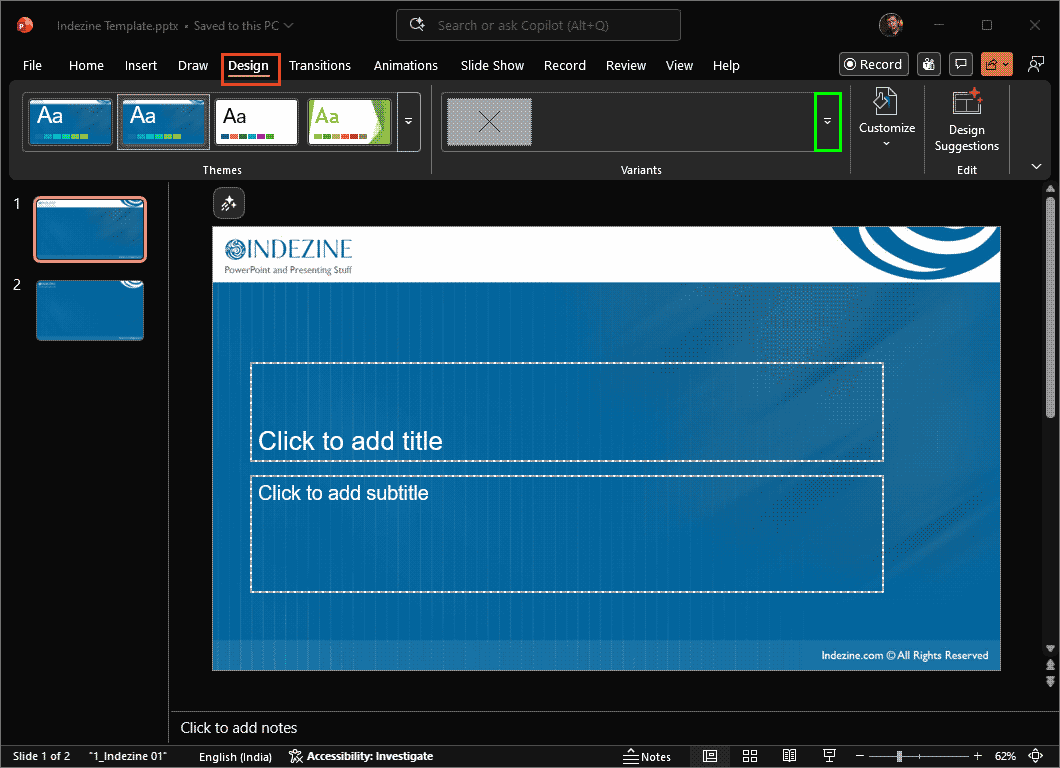
Figure 2: Corporate template open in PowerPoint- Now, access the Design tab of the Ribbon, as shown highlighted in red within Figure 2, above. Next, click the More button within the Variants group, as shown highlighted in green within Figure 2.
- In the resultant menu, click the Colors option, highlighted in red within Figure 3, below. This action will bring up the Theme Colors drop-down menu, where you can click on the Customize Colors option, highlighted in green within Figure 3.
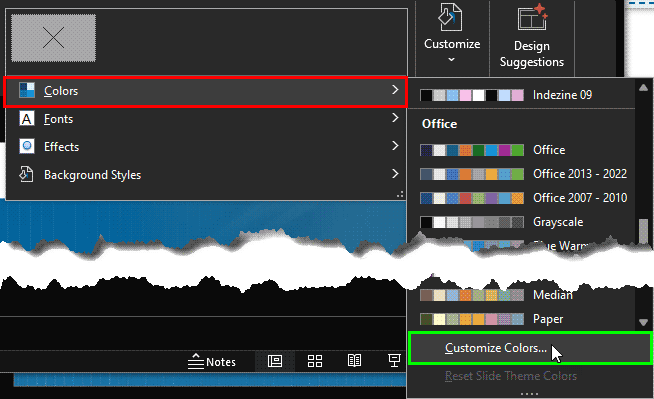
Figure 3: Theme Colors drop-down menu- Doing so summons the Create New Theme Colors dialog box, as shown in Figure 4, below. Notice that there are twelve colors shown in the Theme colors area. For our purpose, we need to look at colors 3 to 9, highlighted in red within Figure 3, above. Now, these are not five colors as discussed in the PowerPoint Colors in PresenterMedia? box above. Rather, they are seven colors. Why the extra two colors? That’s because we will create not one but two Preset Themes in PresenterMedia.
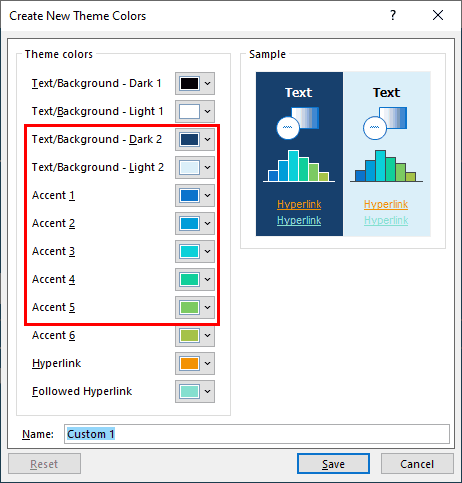
Figure 4: Create New Theme Colors- Before we create those Themes, we need to get the RGB hexadecimal values of these seven colors. To get those values, let us start with the color used for the Text/Background – Dark 2 option. To do so, click on the box towards the right (the box with a downward-pointing arrow to its right), as shown highlighted in red within Figure 5, below. Doing so will bring up a flyout menu with color thumbnails. Click on the More Colors option, highlighted in green.
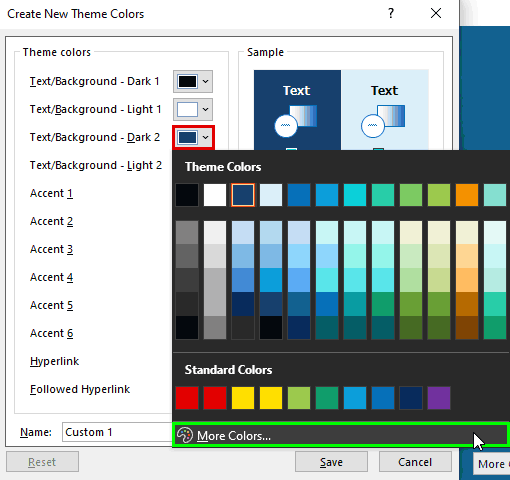
Figure 5: Choose the More Colors option- This action brings up the Colors dialog box, as shown in Figure 6, below. You will find the Hex box at the bottom, highlighted in red within Figure 6. Copy this value and save it. Then, click the Cancel button, highlighted in green to get back to the Create New Theme Colors dialog box, shown previously on this page in Figure 4.

Figure 6: Copy the Hex value- Similarly, copy Hex values of all the seven colors and save them for now. Here are the seven values we sourced from a PowerPoint template:
DBEFF9
0F6FC6
009DD9
0BD0D9
10CF9B
7CCA62
A5C249
3. Create Your Own PresenterMedia Preset Theme
Now that we have sourced our company-branded color values from PowerPoint, it’s time to create our Preset Themes within PresenterMedia. Follow these steps to get started:
- Log in to your PresenterMedia account. On the home page, locate the large Search box, as shown highlighted in red within Figure 7, below. Next, add your search keywords. Then, click the Search button. As you can see in Figure 7, we searched for a rainbow.
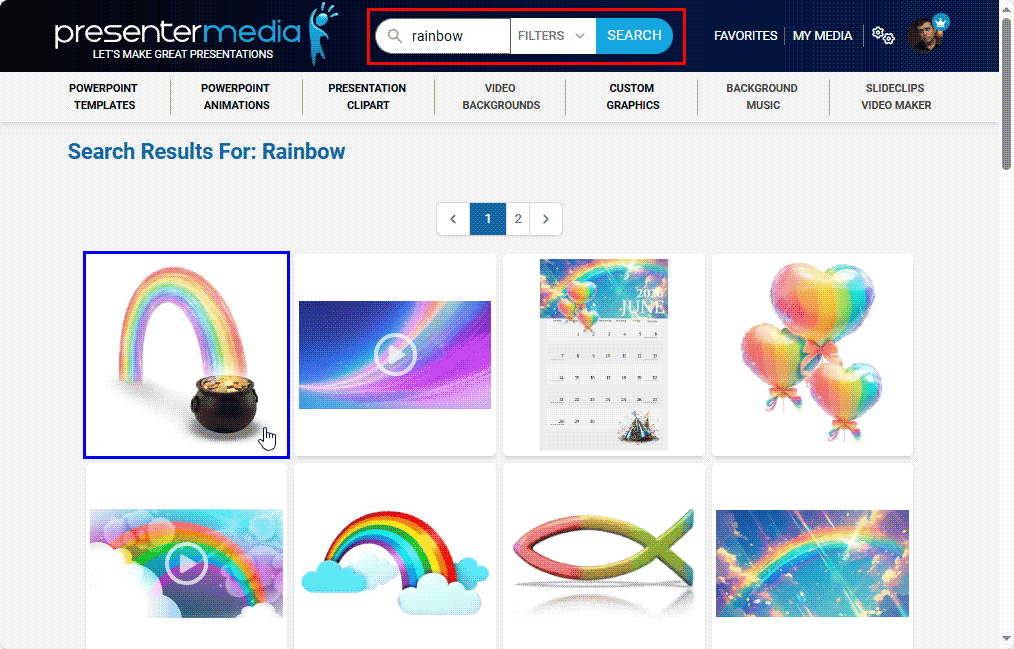
Figure 7: Search for a rainbow- We selected and clicked a simple rainbow graphic with a treasure pot, as shown highlighted in blue within Figure 7, above.
- Doing so opens the graphic in an editor, as shown in Figure 8, below.
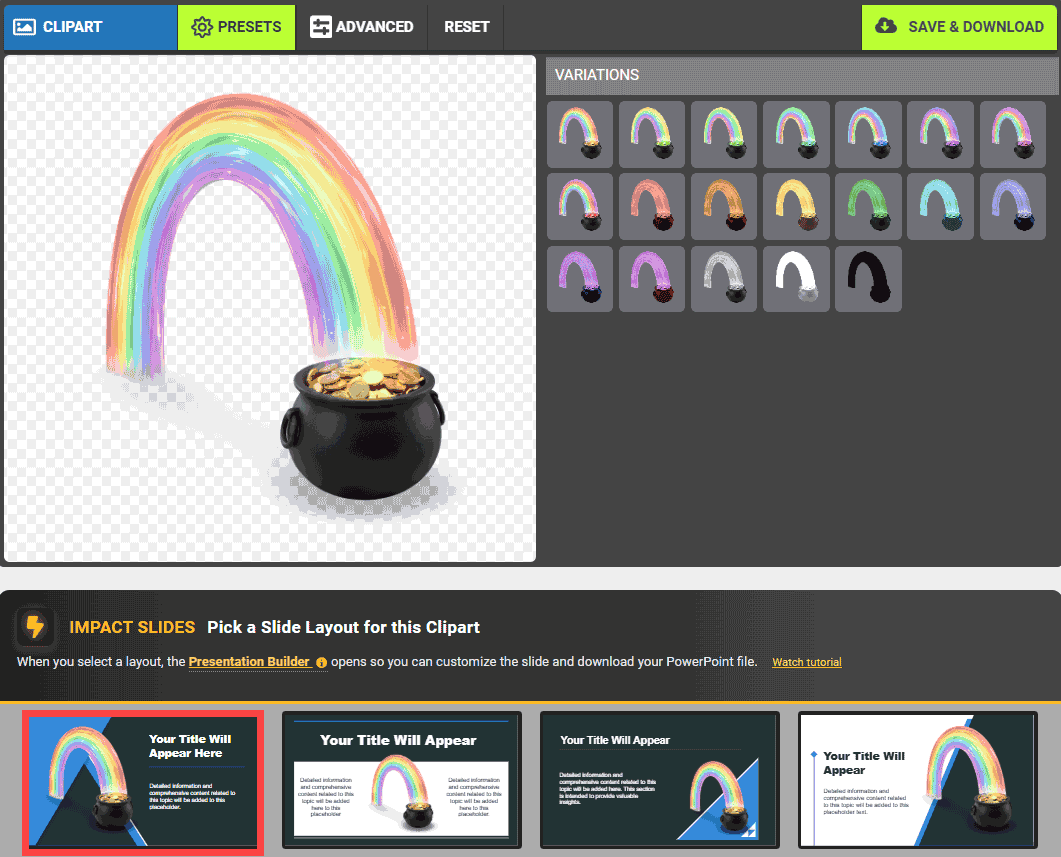
Figure 8: Choose an Impact Slide- Scroll down until you see the Impact Slides area, as shown in Figure 8, above. We clicked on the first thumbnail, highlighted in red within Figure 8.
- This action brings up PresenterMedia’s AI Presentation Builder screen, as shown in Figure 9, below. We will revisit this interface later on this page. For now, click on the Themes button, highlighted in red within Figure 9.

Figure 9: AI Presentation Builder- Doing so brings up the Preset Themes in PresenterMedia, as shown in Figure 10, below. The area highlighted in red within Figure 10, shows these Preset Themes. You can click on any of these, and you will see the changes on the active slide on the right side.
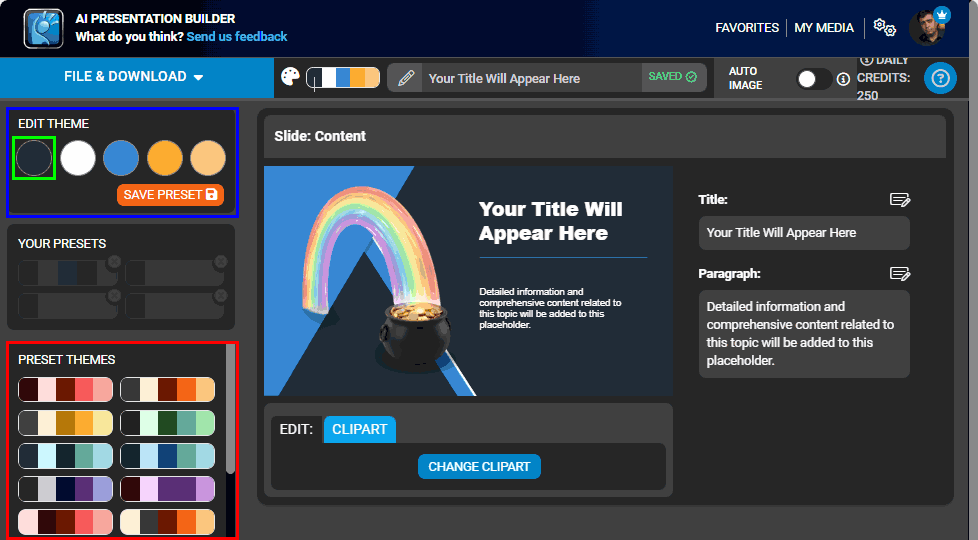
Figure 10: Preset Themes in PresenterMedia- We want to create our own Preset Theme. You will find relevant options to do so in the area highlighted in blue within Figure 10, above. There are five color swatches, represented as colored circles. We will now click on the first circle, highlighted in green within Figure 10.
- Do you remember the color values we saved from within our PowerPoint Theme Color set in the preceding section? We saved Hex values of seven colors:
Text/Background – Dark 2: DBEFF9
Text/Background – Light 2: 0F6FC6
Accent 1: 009DD9
Accent 2: 0BD0D9
Accent 3: 10CF9B
Accent 4: 7CCA62
Accent 5: A5C249 - Now, we will create two Preset Themes within PresenterMedia from these colors:
- Color values 3 to 7 in PowerPoint
DBEFF9
0F6FC6
009DD9
0BD0D9
10CF9B - Color values 5 to 9 in PowerPoint
009DD9
0BD0D9
10CF9B
7CCA62
A5C249 - We clicked on the first color swatch within PresenterMedia, as shown highlighted in green within Figure 10, previously on this page. In the ensuing screen, type in the Hex value of your first color, as shown highlighted in red within Figure 11, below. Then, hit the Enter key, followed by a click on the Apply button, highlighted in green within Figure 11.

Figure 11: Add your own color value- Similarly, change the other four colors, and then click on the Save Preset button, highlighted in green within Figure 12, below.

Figure 12: Save Preset- You will now see that your Preset is saved, as shown highlighted in green within Figure 13, below. As you can see, we created and saved two Presets.

Figure 13: Saved Presets
4. Choose a graphic or animation
We already chose a rainbow graphic in the preceding section, as shown in Figure 9, previously on this page. Now, follow these steps to explore more:
- You can type your new content within the Title and Paragraph boxes, as shown highlighted in red within Figure 14, below.
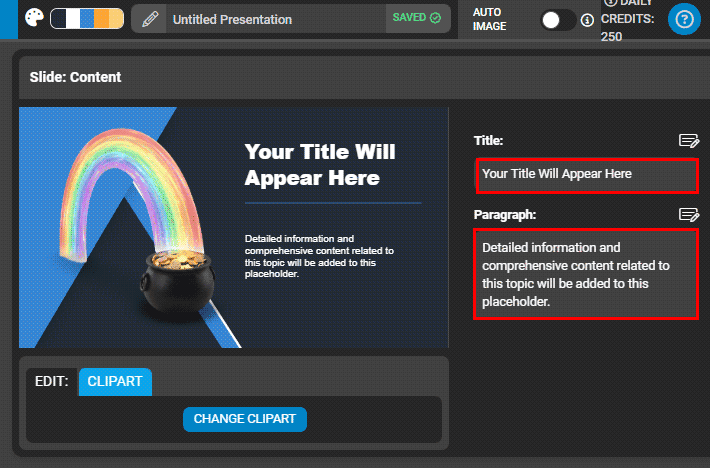
Figure 14: Add content for title and paragraph boxes- The new content you type can be seen highlighted in red within Figure 15, below. Also, this new content shows up on the slide, as shown highlighted in green within Figure 15.

Figure 15: Updated content on slide- Now, click on the Themes button, highlighted in red within Figure 9, shown previously on this page. Doing so brings up all Preset Themes, including the ones we created, as shown highlighted in green within Figure 16, below. Click on any Theme to apply it to your slide.
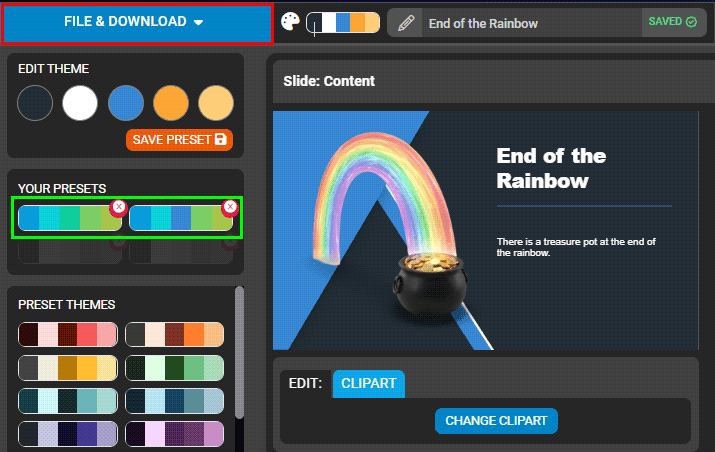
Figure 16: Bring up Preset Themes- Now, click the File & Download button, highlighted in red within Figure 16, above. Doing so brings up the options, shown in Figure 17, below. Click the Download .PPTX option, highlighted in red. Your browser will prompt you to download a PPTX file, which you can later open in PowerPoint and use as a normal slide.
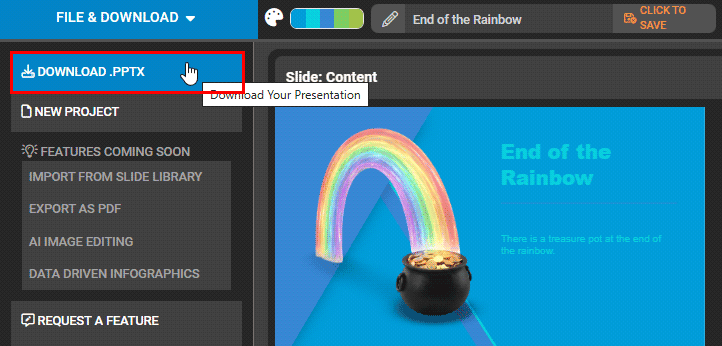
Figure 17: Download PPTX
PresenterMedia’s Impact and Action Slides offer a practical, visually engaging way to overcome the “blank slide” challenge and build brand-consistent presentations with ease. By combining PowerPoint’s theme colors with PresenterMedia’s customizable Preset Themes, you can create cohesive, on-brand graphics that integrate seamlessly into your workflow. Whether you start with a simple clipart search or dive into the AI Presentation Builder, the platform provides flexibility, creativity, and efficiency. With downloadable PPTX files and intuitive editing tools, PresenterMedia becomes a valuable companion for anyone looking to elevate their presentation design process with clarity and confidence.