
Imagine you’re getting ready to bake cupcakes. Before you start, you line up your bowls—one for flour, one for sugar, and one for sprinkles. Each bowl has a special job, right? PowerPoint placeholders are just like those bowls! They show you where to put things on your slide—your title at the top, your content in the middle, and your footers at the bottom. These placeholders can be easily identified because they have some boilerplate text such as Click to add title or Tap to add title, or similar.
When everything has its own spot, your slide titles and content show up consistently on the same location on each slide. Yes, your slides are organized and stress-free, and you can focus on creating the perfect presentation recipe instead of cleaning up a design mess.
Understanding Placeholders (and Why They’re So Cool)
Several types of Placeholders
Conclusion
Understanding Placeholders (and Why They’re So Cool)
Imagine you’re baking cupcakes. Before you pour in the batter, you place cupcake liners in the baking tray. Those liners hold the shape and keep things tidy.
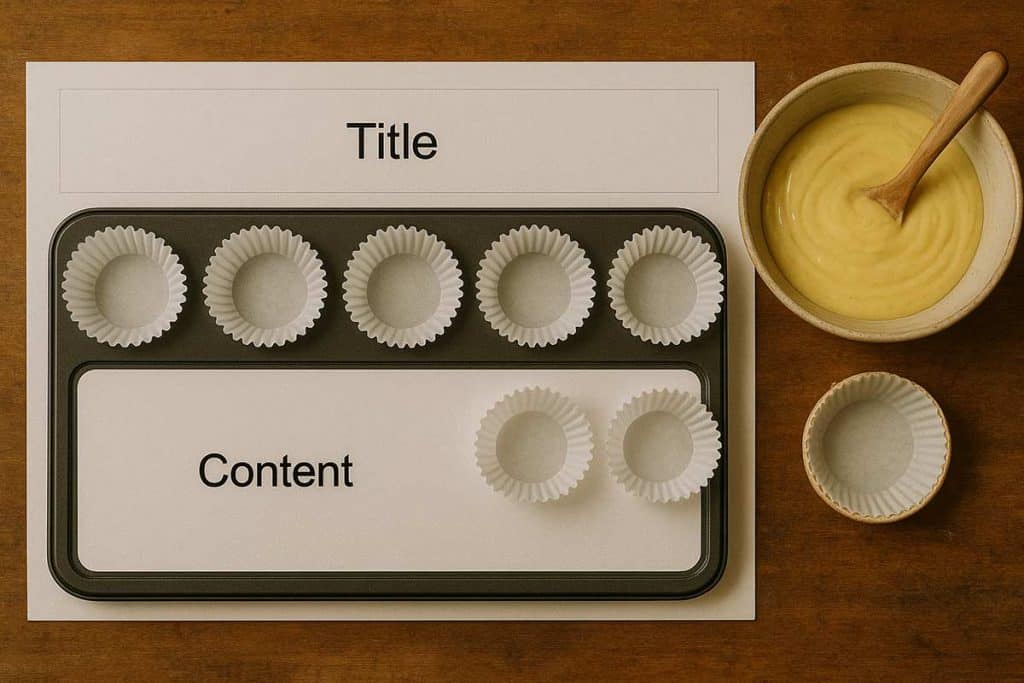
Slide placeholders are like baking trays
In PowerPoint, placeholders are like those liners. They don’t hold the cake batter (your content) yet, but they show you where it’ll go and make sure everything stays in the right spot. So instead of a messy, free-for-all where text and pictures dance all over your slide, placeholders help PowerPoint keep your layout neat and predictable.
Figure 1, below, shows the frequently used Title and Content slide layout with two main placeholders.
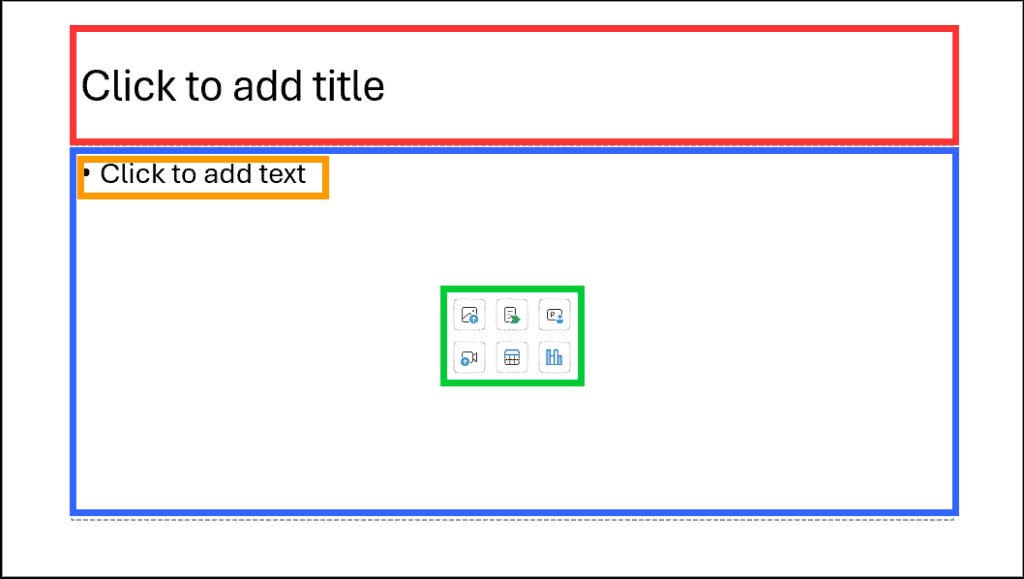
Figure 1: Title and Content slide layout
- The topmost placeholder, highlighted in red within Figure 1, above, is the Title placeholder.
- The bottom placeholder, highlighted in blue within Figure 1, is the Content placeholder. The Content placeholder is multifaceted because it can contain text, highlighted in orange or several other content types via a palette, highlighted in green.
Beyond the Title and Content placeholder, PowerPoint provides many more placeholders.
Several types of Placeholders
Yes, there are many types of placeholders that you can use in slide layouts. Each serves a specific purpose—kind of like different cupcake liner in a baking tray—each designed to hold a particular type or size of content neatly.
You can find these placeholders within the Slide Master tab of the Ribbon, as shown in Figure 2, below.
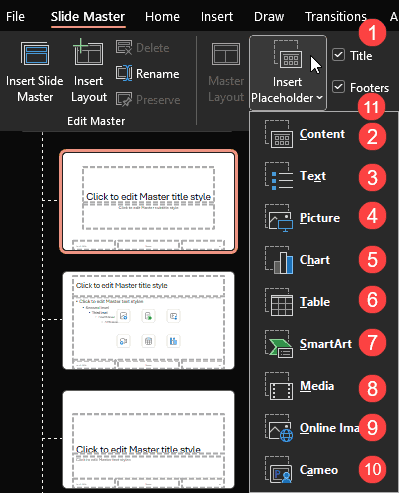
Figure 2: Placeholder types in Slide Master view
Something Different?
Other than the placeholders you see in Figure 2, above, you may find some additional placeholders for vertical text, especially if your operating system includes support for Far East Asian languages. Also, the placeholders are the same irrespective of whether you are using a Windows or a Mac version of PowerPoint.
Here’s the full list of placeholder types you may encounter:
1. Title Placeholder
The Title placeholder shows up on all slides except those using the Blank slide layout. Titles in slides are important for presentations for many reasons, including for accessibility, cataloging, search, and several other reasons. Learn how you can include titles even if they are not visible in our Hiding Slide Titles in PowerPoint post.
2. Content Placeholder
The Content placeholder is the all-rounder, the Swiss Army knife of placeholders—it can hold text, pictures, charts, tables, SmartArt, videos, or 3D models. You’ll spot this one on most default layouts, like Title and Content.
3. Text Placeholder
A simpler one that’s meant only for text—usually found in titles, subtitles, or bullet points. You’ll see these labeled Click to add title or Click to add text.
4. Picture Placeholder
This type is dedicated to images. When you click it, PowerPoint opens the drop-down menu, shown in Figure 3, below. Here you can choose from several options to insert your pictures.
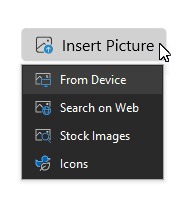
Figure 3: Insert Picture placeholder
5. Chart Placeholder
Reserved for charts and graphs, clicking on this placeholder triggers Excel integration behind the scenes. You will see the Insert Chart dialog box, shown in Figure 4, below, that lets you choose a chart type to begin with.
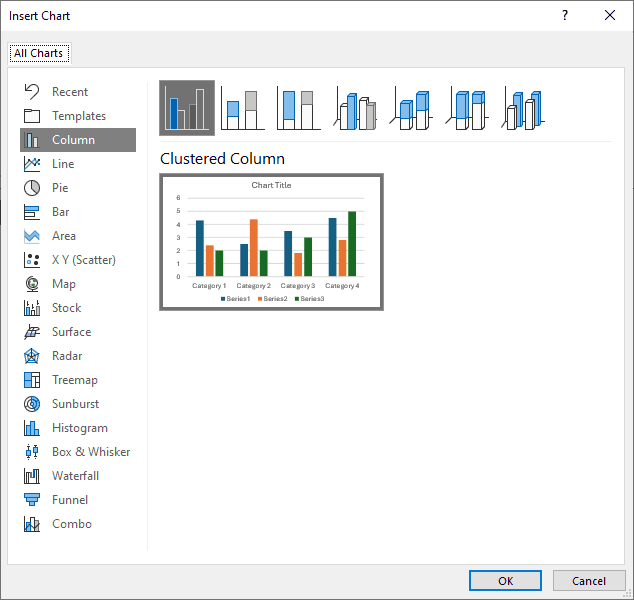
Figure 4: Choose a chart type
6. Table Placeholder
Used to insert tables directly. PowerPoint shows you a grid interface, as shown in Figure 5, below, so you can define rows and columns instantly.
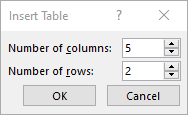
Figure 5: Insert table dialog box
7. SmartArt Placeholder
This one’s your gateway to SmartArt graphics—flowcharts, processes, cycles, and all those handy visual diagrams. You’ll see the Choose a SmartArt Graphic dialog box, shown in Figure 6, below.
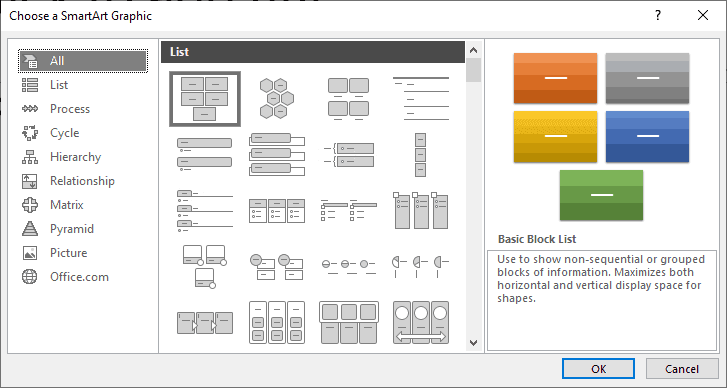
Figure 6: Choose a SmartArt Graphic dialog box
8. Media Placeholder
Although it’s called a media placeholder, this placeholder inserts video files only and does not work for audio or online media. Clicking on this placeholder brings up the Insert Video dialog box, shown in Figure 7, below.
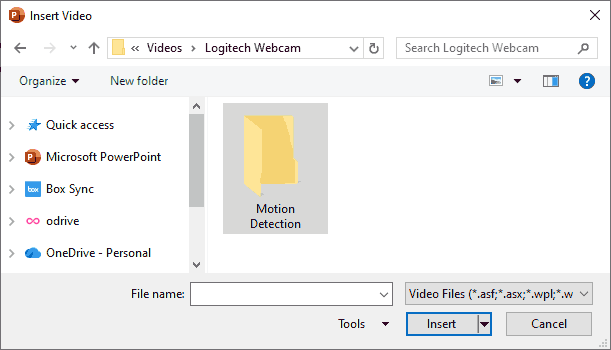
Figure 7: Insert Video dialog box
9. Online Image Placeholder
The Online Image placeholder is exactly the same as the Picture placeholder, shown in Figure 3, previously on this page.
10. Cameo Placeholder
The Cameo placeholder looks a little different than other placeholders, as shown in Figure 8, below. When clicked, it shows your webcam input.
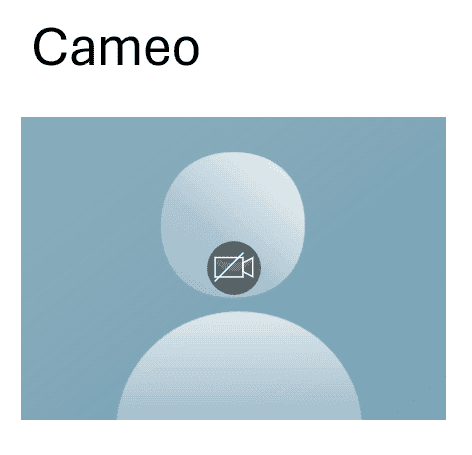
Figure 8: Cameo placeholder
11. Footers Placeholder
PowerPoint footers are like the signature block of your slides—they quietly appear at the bottom, doing the behind-the-scenes work. You actually get three little helpers here:
Date and Time, Footer, and Slide Number.
Now, yes—it’s a bit odd that one of them is literally called Footer, even though it’s just one of the three Footer placeholders. The “Footer” placeholder is simply the one where you can type anything you’d like to appear on all your slides—your company name, your presentation title, or even a friendly “Don’t fall asleep!” reminder.
12. Clip Art Placeholder
This is not marked in Figure 2, shown previously on this page. This placeholder was used mainly in PowerPoint 2010 and earlier versions. It was a shortcut to insert Clip Art directly from Office’s online library (now replaced by stock photos and icons).
Conclusion
Adding a placeholder to a slide layout is like installing an extra drawer in your kitchen—you’re creating a dedicated space for something you’ll need again and again. In PowerPoint, you can open the Slide Master view, pick a layout, and then choose Insert Placeholder to add a new area for text, pictures, charts, or anything else your slides might need. This helps you build a reusable, consistent layout where every element knows its place. Once added, that placeholder becomes part of the template’s DNA—ready to appear automatically on any new slide that uses that layout, saving you time and keeping your design tidy.
In PowerPoint, placeholders are the unsung heroes that bring structure, consistency, and calm to your slides. Once you understand their types and roles—from titles to footers—you’ll design faster, cleaner, and more confidently. Think of them as your slide’s invisible scaffolding: set them right, and your entire presentation stands tall and polished.