
This is the print version of this page. All content is copyright Indezine.com 2000-2026.
Info-things on PowerPoint usage including tips, techniques and tutorials.
See Also:
PowerPoint and Presenting Notes
PowerPoint and Presenting Glossary
As part of our very popular series on timelines that are “different”, let us now explore our fifth, different timeline! In this series, we are not exploring the “best” timelines that you can add to your slides. And realistically speaking, it was a conscious decision to choose “different” rather than “best” for this series because we wanted to bring you timeline slides that are not seen too frequently; and thus, will stand apart from the commonplace.
Our fifth timeline slide is from PresentationLoad, a slide vendor based out of Nierstein, Germany. My contact was Frank Hodrea.
So how is this timeline different than the typical timeline slide? First of all, this timeline is so much more visual that most timelines. Also, it makes the best use of the larger width of the widescreen aspect ratio to fit in so many pictures! PresentationLoad calls this a Company History Timeline.

Although all pictures are grouped, you can still change them individually because newer versions of PowerPoint let you change pictures, even if they are within a group. And if you don’t want to change pictures, PresentationLoad seems to have carefully chosen neutral pictures that will work in most scenarios! All put together, this is a set of 28 slides, and 27 of them have editable timelines!

Template Link | Aspect Ratio: Widescreen (16:9) and Standard (4:3)
If you have found a timeline template that’s different than others, do let us know by adding a comment. Also, if you are a vendor who wants their templates to be featured as part of this series, do get in touch with us via our feedback form.
See More Timelines that are Different: 01 | 02 | 03 | 04 | 05 | 06 | 07
Filed Under:
Showcase
Tagged as: PresentationLoad, Review, Sample Slides, Templates, Timelines
Comments Off on Timelines that are Different – 05
Creating timeline slides can be so much fun, not just because your options are so many—but also since each timeline is completely different from another. We have been looking at the collections of major slide vendors, and are picking timeline templates from their collections that number several hundred slides! Choosing just seven slides from such a large repertoire is not easy because so much thought and visual talent have been used to create the available options.
Our fourth timeline slide is from SlideModel, a slide vendor based out of Uruguay. My contact was Germán Viera.
This timeline is different than the usual single-line timeline. Yet, it uses less slide real estate optimally with a from-the-top look at a maze-style line. SlideModel calls this a Horizon Perspective Timeline.

You can use any number of time values although it would be difficult to use more than ten time-values with captions. Steps/stops are provided using two variants; you can use a colored map pin, or a numbered, colored map pin.
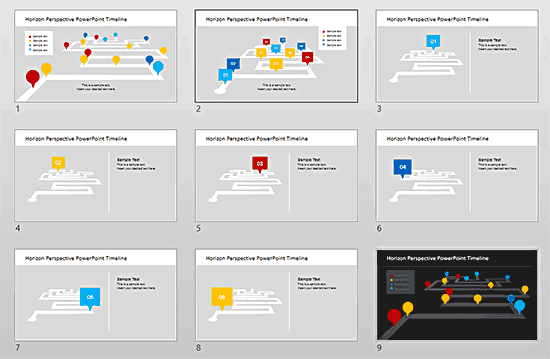
You can also use multiple slides with one step or stop per slide. Some sample slides that illustrate this effect are included.
Template Link | Aspect Ratio: Widescreen (16:9) Only
See more stories about SlideModel.
If you have found a timeline template that’s different than others, do let us know by adding a comment. Also, if you are a vendor who wants their templates to be featured as part of this series, do get in touch with us via our feedback form.
See More Timelines that are Different: 01 | 02 | 03 | 04 | 05 | 06 | 07
Filed Under:
Showcase
Tagged as: Review, Sample Slides, Slidemodel, Templates, Timelines
Comments Off on Timelines that are Different – 04
We have already explored two timelines that are different than the typical straight-line timelines you usually encounter in PowerPoint slides. And while straight timelines are great, and must be used if you have ten or more time values, there are opportunities when you can benefit from a differently styled timeline.
Our third, different timeline is from PoweredTemplate, a slide vendor based out of London, UK. My contact was Joanna Miller.
Look at this timeline template carefully. PoweredTemplate calls this a Timeline Concept.

You can use up to six time values. The slide you see above uses a year for each time value, but you could use any other value you want. Notice that the timeline has been represented by bars that seem stacked up a wall, or rather two walls to create a 3D illusion. This allows you to add two text descriptions for each time value.

The actual deck you download has many more timeline variations included. There are 8 slides using both light and dark background variations.
Template Link | Aspect Ratio: Standard (4:3) Only
If you have found a timeline template that’s different than others, do let us know by adding a comment. Also, if you are a vendor who wants their templates to be featured as part of this series, do get in touch with us via our feedback form.
See More Timelines that are Different: 01 | 02 | 03 | 04 | 05 | 06 | 07
Filed Under:
Showcase
Tagged as: Poweredtemplate, Review, Sample Slides, Templates, Timelines
Comments Off on Timelines that are Different – 03
A while ago, Microsoft discontinued their hugely popular Clip Art collection that allowed you to search and insert visual content right from within PowerPoint without having to pay anything extra. Even better, most of the time you never had to worry about licensing since Microsoft made those available to you as part of an option within their own program.
And now Microsoft has have teamed up with Pickit, a Swedish resource of pictures.

Don’t expect to choose the Pictures or the Online Pictures option from the Insert tab of the Ribbon, and then find an option to search and insert pictures from Pickit. The process works a little differently. Tom Kuhlmann of Articulate has a detailed post. Additionally, Articulate also posted a video to easily explain the process:
Filed Under:
Clip Media
Tagged as: Pickit, Pictures, PowerPoint
Comments Off on Pickit Brings Free Pictures to PowerPoint Again
Timelines are graphics that show a sequential happening of events—these events may be in the past, the present, or the future. Typical timeline graphics emulate a ruler-style measurement bar with text captions. The problem with these timelines is that they all look the same! If you have seen one, you have seen them all.
We already looked at a timeline slide that looked a little unconventional in the first post in this series. And now we will explore another timeline slide, from another vendor. This one is not only different in concept and appearance than the first sample we saw—but it is also different than the hundreds of other timeline slides you may have encountered.
Our second timeline sample is from My Product Roadmap, a UK-based design agency. My contact was Jon Heathcote.
Explore this particular slide template for a timeline. My Product Roadmap calls this a Ten Step Timeline.

Each of the ten steps is identified as a milestone, and a grayed out version that shows just one step active is also part of the template, as shown in the figure below.

I suggest you use all the grayed out milestones in your slide, and then animate-in the colored milestones one after the other to use this template with even more impact.
Template Link | Aspect Ratio: Standard (4:3) Only
If you have found a timeline template that’s different than others, do let us know by adding a comment. Also, if you are a vendor who wants their templates to be featured as part of this series, do get in touch with us via our feedback form.
See More Timelines that are Different: 01 | 02 | 03 | 04 | 05 | 06 | 07
Filed Under:
Showcase
Tagged as: My Product Roadmap, Review, Sample Slides, Templates, Timelines
Comments Off on Timelines that are Different – 02
Microsoft and the Office logo are trademarks or registered trademarks of Microsoft Corporation in the United States and/or other countries.