
If you use Microsoft PowerPoint regularly, you already know how to select a slide. Selecting slides in PowerPoint is one of those deceptively simple skills. It feels basic. Almost too basic to write about. And yet, it quietly controls how fast you edit, reorganize, duplicate, delete, or restructure an entire presentation.

Image: AI generated
Begin with an Analogy
Selection, then Action
1. Selecting One Slide (The Obvious One)
2. Selecting a Range of Slides (Contiguous Selection)
3. Selecting Multiple Slides (Non-Contiguous)
4. Selecting Slides by Dragging
5. Selecting All Slides
6. Select, then Deselect
7. Combine Selection Techniques
Why This Matters More Than You Think
Who Benefits the Most?
A Final Thought
Begin with an Analogy
Think of it like this: if slides are books on a shelf, slide selection is your ability to grab one book, a stack of books, or an entire section in one smooth move.
Slide selection is similar to pulling books from a library shelf. Imagine you’re standing in a large library, looking at a long row of books. Now compare, pulling the books out, one by one.
| In PowerPoint | In a library |
|---|---|
| Clicking one slide at a time | Pulling out one book, walking to the reading table, then going back for the next book. This is repetitive and slow, unless one book is all you need. |
| Selecting multiple slides | Choosing specific books from different parts of the shelf and carrying them together to the reading table in one stack. Much easier than making multiple trips. |
| Selecting a range of slides | Placing your hand on the first book, sliding it across several spines, and pulling out the entire sequence in one smooth motion. |
| Selecting all slides | Clearing the entire shelf into your arms (ambitious, and slightly dramatic). The librarian may not be too happy with you, and your arms may pain with the combined weight of all the books. |
Selection, then Action
In Microsoft PowerPoint, as with most Microsoft Office applications, actions are typically preceded by selection. In other words, you first identify the content you wish to work with. Then, you apply a command to that content.
That command may be executed by clicking a Ribbon option, right-clicking to access a contextual menu, using a keyboard shortcut, tapping on a touchscreen, or issuing a voice command. Regardless of the method, the sequence remains consistent: selection first, then action. Understanding this principle is fundamental to working efficiently in PowerPoint.
Even when you do not consciously select anything, PowerPoint often makes logical assumptions on your behalf.
1. The Active Slide Is Automatically Selected
The slide currently displayed in Normal view is considered active and therefore selected by default. Any command you apply, such as changing layout, applying a transition, or modifying design elements—will affect that active slide unless you select otherwise. There is no need to reselect it.
2. Certain Commands Apply to the Entire Presentation by Default
For some functions, PowerPoint assumes you intend to act on the full presentation unless you define a subset of slides. These typically include commands related to:
- Saving
- Printing
- Initiating Slide Show view
If no specific slides are selected, the entire deck becomes the implicit selection.
Why This Matters
Efficiency in PowerPoint is not merely about knowing which command to use; it is about ensuring the correct content is targeted before applying that command. Many user errors stem not from misunderstanding the feature itself, but from overlooking what is currently selected.
When you internalize the “selection first, then action” model, PowerPoint becomes more predictable, controlled, and efficient — particularly in larger, more complex presentations.
PowerPoint gives you multiple ways to “pull the right books” efficiently. You just need to know which technique to use.
1. Selecting One Slide (The Obvious One)
In Normal view (also known sometimes as Editing view), click once on the thumbnail of the slide in the Slides pane, as shown highlighted in red within Figure 1, below. If you are already working on a particular slide, there is no need to select it again; it is automatically active and selected by default.
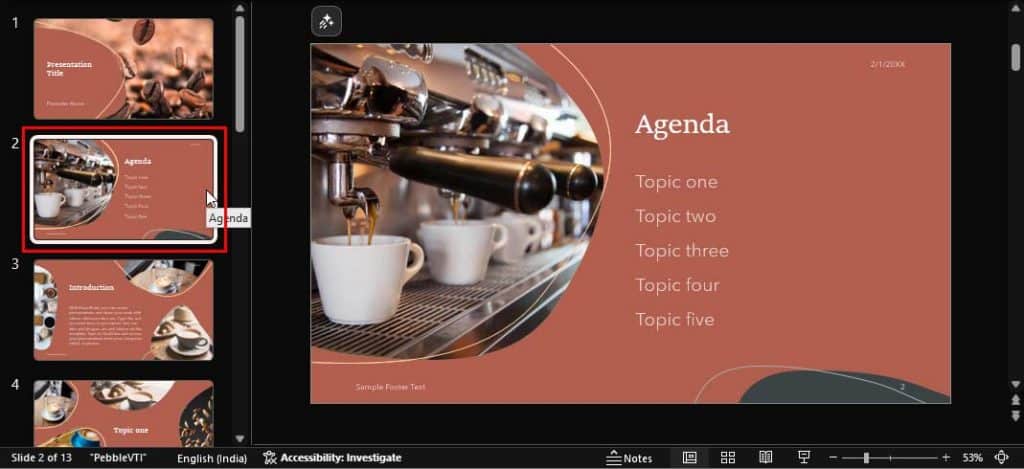
Figure 1: Select slide in the Slides pane
This approach works best when you want to make some changes in the active slide, or you want to work with another slide. This is fine for:
- Editing one slide
- Applying a single transition
- Adjusting layout for one slide
- Reset layout for one slide
- Duplicating a single slide
However, if you’re working with a 60-slide deck, or even a 6-slide deck, then you cannot keep doing this selection task repeatedly. You’re not working efficiently — you’re just working harder. Do explore the other options to select more than one slide, as explained in the steps below.
2. Selecting a Range of Slides (Contiguous Selection)
It is far more time-efficient to select multiple slides in a single action, particularly when those slides are sequential and contiguous—rather than handling them individually. To accomplish this task efficiently, switch to Slide Sorter view, as it provides a clearer visual overview and makes selecting multiple slides significantly easier and more precise
Now, click the first slide to select it. Then, hold the Shift key, and click on the last contiguous slide you want to select. As you can see in Figure 2, below, we first selected slide 1, and then Shift clicked on slide 4. PowerPoint selects everything in between. This is your “power sweep.”

Figure 2: Select contiguous slides
This approach works best when you want to select several sequential slides, This is especially useful when:
- You want to make changes to a subset of your slides
- You want to create a section from the selected slides
- You need to delete or duplicate a bunch of slides
- You want to add the same transition effect to all selected slides
- You want to copy these slides into a new, shortened version of the presentation
This is similar to how you select multiple files in File Explorer — same logic, different canvas.
3. Selecting Multiple Slides (Non-Contiguous)
In Microsoft PowerPoint, selecting non-contiguous slides is almost as easy as selecting contiguous slides, but it requires a bit more attention. You first select your initial slide in Slide Sorter view. Then, you hold Ctrl (Windows) or ⌘ (Mac) and click on each of the individual slides you want to select. This is your “pick and choose” method, which is perfect for:
- Deleting scattered slides
- Applying formatting or layouts to specific slides
- Duplicating selected slides
- Reorganizing slides into specific sections
- Hiding some slides
- Changing layout for selected slides only
Slide Sorter vs. Normal View
If Normal view is like reading a book page by page, Slide Sorter view is like laying all the pages on a giant table and reorganizing them in one go. Professionals who build long decks (training programs, pitch decks, keynote talks) live in Slide Sorter view.
4. Selecting Slides by Dragging
In Microsoft PowerPoint, dragging to select slides works best in Slide Sorter view, where all slides appear as thumbnails in a grid. Here’s how to do it efficiently:
- Ensure you are in Slide Sorter view. Here, you’ll see all slides displayed as smaller thumbnails.
- Click in an empty area. Essentially, you position your mouse pointer in a blank space near the slides (not directly on a slide thumbnail).
- Now, you will click and drag to select slides. To do so, you hold down the primary mouse button and then drag across the slides you want to select. As you drag, a rectangular selection box appears. Any slide thumbnail inside or touched by that box becomes selected, as you can see in Figure 3, below.
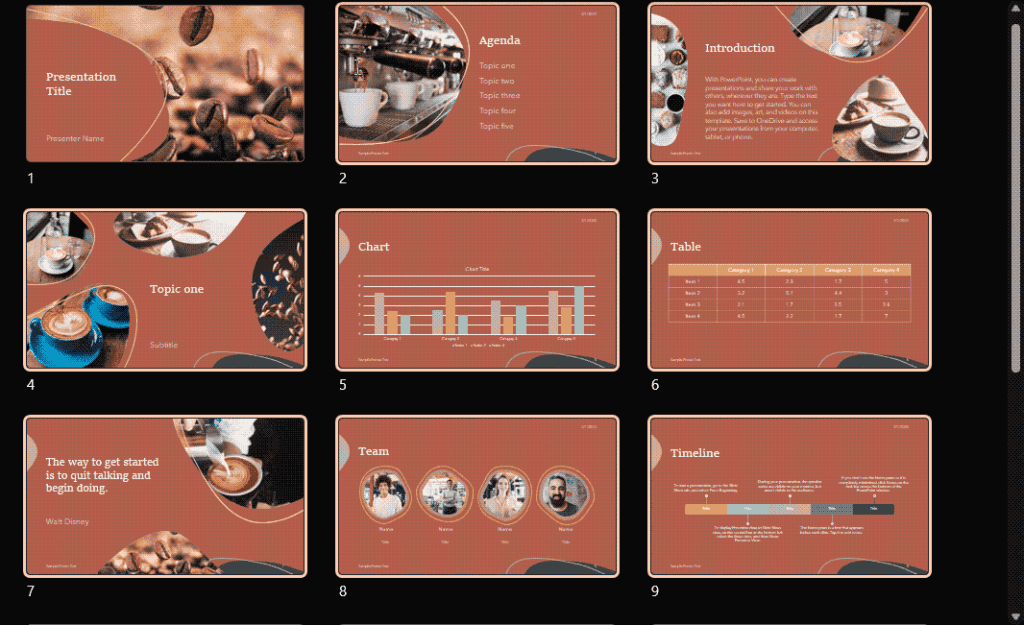
Figure 3: Drag to select slides- As you can see in Figure 3, above, we first clicked in an empty area to the right of slide 9, and then dragged upwards to slide 2. By doing so, we selected all slides numbered between 9 and 2.
This dragging to select option is ideal when:
- You need to clean up large sections of slides
- Rearrange a block of slides
- Move multiple slides to a new position
- Delete a visual group of slides
This process is often faster than Shift-clicking because you’re selecting visually rather than numerically. Think of it like drawing a box around photos on a desktop. Whatever falls inside the box gets selected. Once selected, you can move, delete, duplicate, or format them in one action.
5. Selecting All Slides
This technique of selecting all slides can be done in both within the Slides pane or while using Slide Sorter view. We prefer the latter, but the process works similarly in both instances.
If you are Normal view, click within the Slides pane. If you are in Slide Sorter view, it might help if you click on an empty area. Now, press Ctrl + A (Windows) or ⌘ + A (Mac). All slides in your presentation deck get selected.

PowerPoint Keyboard Shortcuts
Do you want more keyboard shortcuts?
Explore our PowerPoint Keyboard Shortcuts and Sequences Ebook that is updated for all PowerPoint versions.
So, now that you know how you can select all slides, when would you do this option? You could use it to:
- Apply the same transition effect to all slides
- Reset slide layouts for all slides
- Copy all slides in the presentation into another file
- Or any other bulk formatting changes
This could be your “renovate the whole house” move.
6. Select, then Deselect
This is possibly the most efficient technique. This approach works particularly well when you need to select almost all slides in a presentation except for a few. Begin by selecting the entire deck using the Ctrl + A (Windows) or ⌘ + A (Mac) keyboard shortcut. As expected, this command selects every slide in the presentation.
You can then Ctrl click (Windows) or ⌘ + click (Mac) individual slides to remove them from the selection.
This approach allows you to quickly refine the selection, leaving you with the exact group of slides you want. Yes, this technique works best if you quickly want to select all but a few slides in your presentation.
7. Combine Selection Techniques
Yes. In Microsoft PowerPoint, these slide-selection techniques can absolutely be combined, and doing so is often the most efficient way to work with larger presentations. Think of the selection methods as building blocks rather than isolated actions. You can start with one method and then refine your selection using another.
The previous 6. Select, then Deselect option is also a combination selection process, but here’s another option:
- Click the first slide in a range.
- Hold Shift and click another slide to select a contiguous group.
- Then hold Ctrl (Windows) or ⌘ (Mac) and click slides within the selection.
- Next, with still holding the Ctrl (Windows) or ⌘ (Mac) keys, click additional slides elsewhere in the deck to include them.
This process allows you to combine contiguous and non-contiguous selections in the same operation.
Combining techniques is particularly useful when you are:
- Working with large presentations
- Applying formatting to multiple slide groups
- Reorganizing sections
- Duplicating or exporting selected slides
Rather than selecting slides one at a time, you can quickly construct a precise selection using a mix of methods.
Why This Matters More Than You Think
Here is an important practical insight: most people do not struggle with PowerPoint because they lack creativity. More often, the challenge lies in inefficient workflow habits. Developing the ability to select slides efficiently can significantly improve how you manage and refine presentations. In particular, effective slide selection helps you:
- Reorganize presentations more quickly
- Build modular slide structures
- Create tailored versions for different audiences
- Streamline and clean up overly large decks
- Maintain formatting and structural consistency
In larger corporate presentations, often ranging from 50 to 150 slides—inefficient slide selection can easily add 15 to 30 minutes of extra work during each revision cycle. Over the course of a year, that incremental time loss can accumulate into several hours, and potentially even days. All of this stems from a fundamental skill that is rarely discussed yet has a meaningful impact on productivity.
Who Benefits the Most?
Efficient slide selection techniques can benefit a wide range of PowerPoint users, particularly those who work with presentations regularly or manage larger slide decks. These include:
- Corporate professionals who frequently update or refine recurring presentations
- Trainers and educators who need to reorganize or restructure training modules
- Consultants who customize presentations for different clients or engagements
- Agencies and design teams that repurpose existing decks for new contexts or audiences
- Power users who prioritize speed, efficiency, and precision in their workflow
Even beginners can benefit significantly. Mastering slide selection is a foundational skill that quickly builds confidence and improves overall productivity, making it one of the simplest yet most valuable capabilities to develop in PowerPoint.
A Final Thought
Becoming proficient in slide selection in Microsoft PowerPoint is much like learning keyboard shortcuts. Initially, it may seem like a small refinement, but over time it becomes an integral part of an efficient workflow—so much so that it is difficult to imagine working without it.
If you find yourself selecting slides one at a time in a large deck, pause and ask: “Is there a faster way to grab this entire group?” There almost always is. And once you build that habit, you won’t just use PowerPoint — you’ll control it.
Here’s a refresher for selecting slides in Slide Sorter view:
- To select a single slide, just click on the slide.
- To select a range of slides, hold down the primary mouse button and drag across and over the slides like a marquee. Try to drag in a diagonal direction if you have more than one line of slides lined up.
- To select a contiguous range of slides, click the first slide, hold the Shift key on the keyboard, and then click the last slide.
- To select multiple, non-contiguous slides, hold down the Ctrl (Windows) or ⌘ (Mac) keys on your keyboard (and then click the slides you want to select.
- To select all the slides in the presentation, press the Ctrl + A (Windows) or ⌘ + A (Mac) keyboard shortcut.
- To select all but a few slides, first select all slides, and then Ctrl + click (Windows) or ⌘ + click (Mac) on the slides you want to deselect.