
pptXTREME is a suite of professional PowerPoint add-ins that has been trusted for nearly two decades. Its user base spans a wide range of sectors—from management consultants and corporate professionals to educators, pharmaceutical teams, and creative specialists—all relying on its tools to streamline workflows and enhance presentation quality.
In this feature, we will explore what this add-in delivers, we will look at some user personas and conclude whether this add-in can add value to your presentation workflows.
Introduction
pptXTREME Modules
Slide Designers Using pptXTREME
Consultants Using pptXTREME
Conclusion
Introduction
pptXTREME is developed by Corporate Imaging, Inc., under the leadership of Keith Tromer. Corporate Imaging, Inc. is known for delivering high-efficiency tools that optimize presentation design, streamline workflow, and enhance visual consistency across enterprise-level projects.
Initially, there was more than one PowerPoint add-in from the pptXTREME stable. Nowadays, they are sold as a bundle that combines options from all of their add-ins. When installed within PowerPoint, you will see the new pptXTREME tab of the Ribbon, as shown in Figure 1, below.
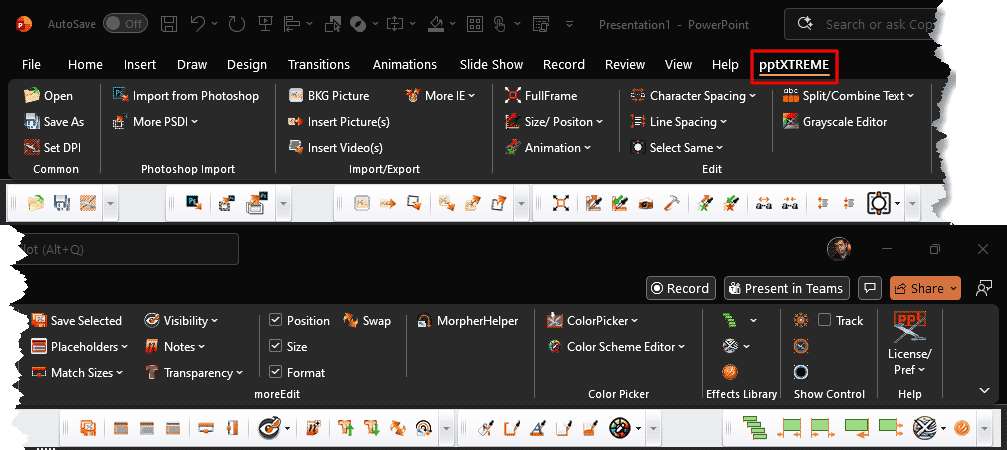
Figure 1: pptXTREME tab of the Ribbon
The tab itself is highlighted in red within Figure 1, above. Additionally, you can see the pptXTREME toolbar right below the Ribbon area.
pptXTREME Modules
Here is a breakdown of the principal add-in families within the pptXTREME suite, along with a description about what each one does. Think of these as a menu of tools you can pick from depending on your presentation workflow.
| Add-in | Core Purpose / Features |
| ColorPicker | Allows you to pick colors from anywhere on-screen and apply them to fills, outlines, text, shadows, and the background in PowerPoint. Additionally, there are tools that let you quickly create PowerPoint Theme colors quickly. |
| Photoshop Import | Integrate Photoshop designs into PowerPoint, with layers intact. Go beyond with effortless round‑trip editing, saving time while keeping presentations visually sharp. |
| Import/Export | Remembers the last folder you used to insert pictures and retains a link for each inserted picture to its source folder perpetually. You can also bulk import pictures, and also set them as backgrounds, all with one click, saving you tons of time. You can also export some or all slides as images with set resolutions. You can also export all shapes in your presentation as visual assets to use in other presentations later. |
| Edit | Sets any object to fill the entire slide area, or even the entire width or height. You can copy and apply size, position, and formatting from one object to another. Plus, character and line spacing both become interactive options with live previews. Finally, there’s a detailed Grayscale Editor that lets you fine-tune how your slides print to a black and white printer. |
| moreEdit | Makes repetitive tasks easy, such as saving slide subsets as new presentation decks. The Make Header and Make Body options ensure that your presentations are structured and use proper title and content placeholders. The Match Width and Match Height options allow you to set the same object widths and heights with one click. You also have logical options to work better with hidden slides. You can also quickly add Sticky Notes that can be quickly hidden or shown. |
| Effects Library | Includes ready-made animation sets (staggered or synchronized animations) like Zoom In and Rise Up, and Bulge In, so you can get started quickly. Effects are organized into categories you can edit, remove, or create from scratch. You can also export and import libraries to share animations across computers or keep them for later use. You also get Ripplify, a tool that lets you quickly set order, spacing, and timing for animations. |
| Show Control | This module provides a set of commands designed to give you precise control over what your audience sees during a presentation and works only with multiple displays. These tools are especially useful in live event environments, training sessions, and high‑stakes executive reviews. Freeze temporarily locks (or unlocks) the computer’s output so the audience continues seeing the current frame while you make changes behind the scenes. Still Store fades the computer output to a selected still image, and fades back when ready. |
Having briefly explored the capabilities that pptXTREME offers, it becomes evident that its full potential cannot be adequately covered in a single article. Doing so would require a series of in-depth posts—or even a dedicated publication. To keep the discussion focused and practical, we will instead examine two representative personas and explore how each can benefit from using pptXTREME.
While individual roles and workflows naturally vary, these personas: slide designers and consultants are intentionally broad and encompass many common presentation-creation scenarios. As a result, even if your role does not align precisely with either persona, you are likely to find meaningful overlap with one or both.
For both personas, the discussion is structured around five core areas where pptXTREME delivers the greatest impact. While some overlap between these areas is expected, the underlying use cases and value drivers often differ by role.
Slide Designers Using pptXTREME
Here are the five most important pptXTREME features that matter most to slide designers. Each one chosen because it directly impacts how you build, polish, and scale professional slides:
1. Advanced Animation & Effects Library
pptXTREME includes a library of custom programmed animation sequences (e.g., Curved Zoom In, Bulge In, Swoosh Up, etc.) that go beyond PowerPoint’s built-in animations. This lets designers create more dynamic motion effects without building them from scratch.
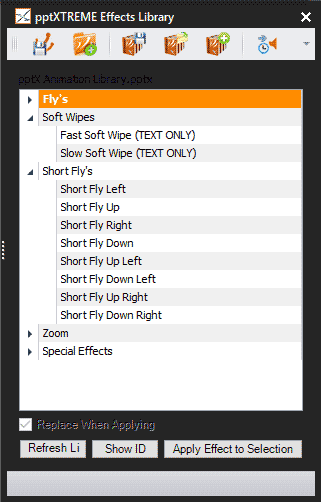
Why it’s important: You can make slides feel more cinematic and engaging—ideal for pitches, executive decks, and event presentations.
2. Photoshop Import (Preserve Layers & Quality)
The Photoshop Import tool allows you to bring .PSD files into PowerPoint while retaining layers, positioning, transparency, and quality—eliminating tedious manual export, slice, and drag workflows.
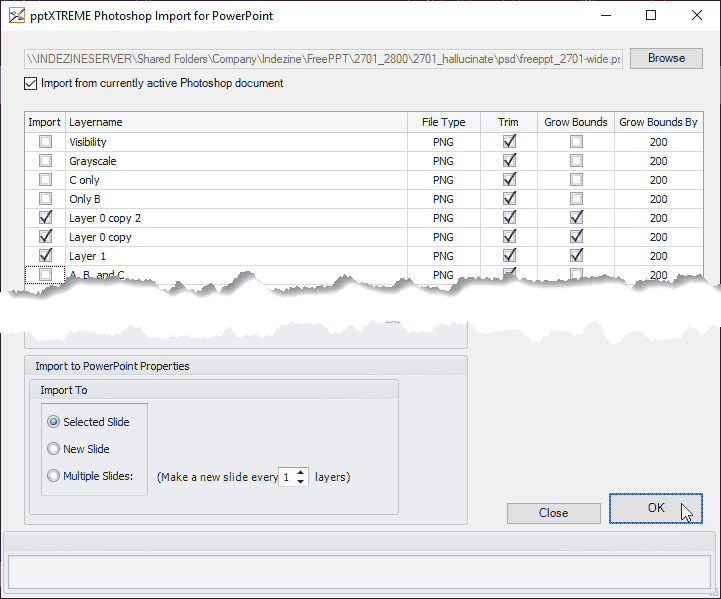
Why it’s important: Designers can create detailed visuals in Photoshop and seamlessly integrate them into PowerPoint, preserving fidelity and editability.
3. Size/Position & Edit Enhancements
Features like Size/Position and moreEdit formatting controls let you replicate exact dimensions, alignment, and formatting across elements.
Why it’s important: Ensures pixel-perfect consistency across slides—a hallmark of professional-level design.
4. Save Selected (Slide Segmentation & Management)
The Save Selected tool lets you extract a selected group of slides and save them as a new deck in one click, ideal for multi-audience decks or version control.
Why it’s important: Designers often juggle various versions (presenter copies, regional variants, teaser decks). This feature speeds up that process dramatically.
5. Set DPI & Image Handling
pptXTREME’s Set DPI functionality ensures images are imported at the correct effective resolution and size, solving PowerPoint’s common scaling issues.

Why it’s important: Keeps graphics crisp and correctly scaled—essential for print-quality, large screens, or high-resolution projectors.
Consultants Using pptXTREME
Here are the five most important pptXTREME features for consultants: the ones that deliver the biggest productivity and business-presentation impact in a consulting context (tight deadlines, large decks, multiple versions, and polished client delivery):
1. Advanced Editing & Batch Formatting (moreEdit)
pptXTREME’s moreEdit module lets consultants edit, format, and clean up slides across an entire deck with far fewer clicks than PowerPoint alone. These include batch resizing, matching width/height, hiding/unhiding slides, and annotating during reviews. Also, for slides that do not use default placeholders, moreEdit lets you apply Title and Body placeholders with one click.

Consulting value: Reduces manual cleanup time, helps enforce slide standards, and simplifies prepping decks for client delivery under tight deadlines.
2. Save Selected & Slide Management Tools
With tools like Save Selected, consultants can extract subsets of slides into standalone decks instantly. This option is perfect when preparing client-specific versions, teaser decks, or tailored presentations from a master set.
Consulting value: Saves hours of copy-paste work and prevents errors when separating slides for different stakeholders.
3. Object Consistency Controls (Size/Position Match)
pptXTREME provides features to capture object size/position/formatting from one element and apply it uniformly across many others. This ensures layouts and branding are consistent throughout the deck—a key requirement in consulting deliverables.
Consulting value: Guarantees professional, pixel-perfect slides that reflect firm standards or client brand guidelines.
4. Improved Navigation & Search Across Large Decks
pptXTREME enhances navigation, slide thumbnails, and content search, helping consultants locate text, objects, or specific slides quickly in large presentations—a real time-saver in decks with 100+ slides.
Consulting value: Minimizes frustration and speeds up editing across big slide sets common in pitches, reports, or training decks.
5. Reliable Presentation Tools
pptXTREME’s ShowControl tools can be indispensable for consultants who need more control over what they are showing to their audiences, even if these are virtual attendees. The Freeze, Still Store, and Black tools are awesome.
Plus, the ability to alternate between Slide Sorter and Slide Show views is something that power presenters love.

Consulting value: Keeps presenters in control over what they show to their audiences.
Conclusion
pptXTREME brings together a powerful collection of tools designed to streamline workflows, enhance visual consistency, and give presenters greater control during high‑stakes presentations. Whether you’re a slide designer refining complex layouts, a consultant managing large decks under tight deadlines, or a presenter navigating live delivery, these add-ins remove friction from every stage of the process. By combining precision editing, smart automation, and thoughtful presentation‑control features, pptXTREME helps you work faster, present with confidence, and deliver polished, professional results every time. It’s a toolkit built for real‑world presentation challenges—and for the people who solve them.