
Your toughest rival in any presentation is the phone in each attendee’s hand. AhaSlides doesn’t fight it. It puts that phone to work. AhaSlides lets presenters run polls, quizzes, word clouds and Q&A that people answer from their own phones. Joining takes a link or a QR code. There is no app to install and no account to create, and it works as a web app. Plus, there’s also a PowerPoint add-in available.

The Phone Problem
About AhaSlides
Getting Started
Four Kinds of Slides
Building a Quiz
The PowerPoint Add-in
More AhaSlides Options
Pricing and Support
Strengths and Considerations
Conclusion
The Phone Problem
Here is a secret every presenter knows. Your toughest rival is not the speaker before you. It is the phone in every attendee’s hand. In a room, you can at least see the problem. You look up and spot glowing screens, like fireflies in the back rows. Some people are clearly elsewhere. You sigh and keep going. Online, the rival becomes invisible. Is that attendee nodding at your chart, or at a funny video? You will never know. It is like hosting a dinner party where the guests sit behind curtains.
So how do you beat the phone? You do not. You recruit it. That is the idea behind AhaSlides. Instead of asking people to put their phones away, it asks them to pick them up and take part. Think of it as turning distracted listeners into active participants.
AhaSlides is a cloud-based tool for polls, quizzes, word clouds and Q&A. That part is familiar. What caught our attention is how it slips into PowerPoint, right inside the deck you already have. No switching windows. No starting over. Does it deliver on that promise? We put AhaSlides through its paces with a Pro account. We talk about various account types later in this review. Until then, here is what we found.
About AhaSlides
AhaSlides is a tool for interactive presentations. It was founded in 2019. AhaSlides works on two fronts:
- The web-based dashboard. This runs in your browser. There is nothing to install. You build your slides here and can present them straight from the browser.
- The PowerPoint add-in. This is newly released. It brings your AhaSlides content into PowerPoint, so interactive slides sit right inside the deck you already have.
Think of the dashboard as your kitchen and the add-in as the serving tray. You cook in one place, then carry the dishes to the table where your guests are already seated. Of course, you can also reverse the sequence and AhaSlides will still deliver. And if you use Google Slides rather than PowerPoint, that’s covered too, through a separate integration. However, in this review, we will focus on the PowerPoint add-in.
This review was made possible by Amy Vu at AhaSlides, who coordinated our access and arranged a Pro account for testing. Charles Jeffs from the Customer Success team also supported the review with a guided walkthrough of the product. AhaSlides is based in Singapore. Singapore’s nickname is the Lion City, from the Sanskrit words for “lion” and “city.” Fitting, perhaps, for a tool that helps shy audiences speak up.
Getting Started
Signing up for AhaSlides or even logging in after signing up is quick. There are four ways in, as marked in Figure 1, below.

Figure 1: Log in to AhaSlides
You can sign or log-in via:
- Log in with Google: Already live on Google? Use that account and skip the extra password.
- Log in with Microsoft: Already live in Microsoft 365? Use your Microsoft account and skip the extra password.
- Log in with your email address: Prefer a separate login? Use your email address and password to sign in, then open the verification email sent to your inbox and click the confirmation link.
- Log in with SSO: Working in a larger organization? SSO lets you sign in with your company email.
Pick the one that matches how you already work. To sign up, there is no credit card needed. The free plan is permanent and allows up to 50 live participants.
Once you are signed in, you arrive at your dashboard, shown in Figure 2, below.

Figure 2: AhaSlides dashboard
There are essentially three options available here, as marked in Figure 2, above:
1. New presentation
This option brings up a new AhaSlides presentation, as shown in Figure 3, below. You can opt to create many types of interactive slides, such as Quiz, Game, Poll, etc. If you need to create a simple slide with normal text and pictures, you can choose the Content option, highlighted in red within Figure 3. We discuss all slide types in the next section, Four Kinds of Slides.

Figure 3: New presentation in AhaSlides
2. Import
The Import option brings up the Import dialog box, shown in Figure 4, below. You will see two tabs in the left pane, highlighted in red. The first tab, Import Slides, allows you to sync with your Google Drive or OneDrive. You can also drag and drop your PPTX, PPT, and PDF files, as shown in the Upload area, highlighted in blue.

Figure 4: Import your slides and spreadsheets
The second tab, Import Spreadsheet, lets you bring in our spreadsheet data.
If you drag in your existing PowerPoint file, you see the What do you want to do with your file? message, as shown in Figure 5, below. You can choose Import slides, which imports all slides as pictures. You can also choose Import as editable slides, and AhaSlides will import slides as editable content, so that you can make quick changes to text and pictures.

Figure 5: Import flat or editable slides
3. Build with AI
This third option, Build with AI, is almost like a free, bonus program bundled as part of AhaSlides. You type in a prompt, as shown in Figure 6, below. We typed a fairly simple prompt, but you can be as detailed as you want. When done, just click on the Go Arrow button, highlighted in blue.

Figure 6: Build with AI
AhaSlides will now build the slides, and you can see the progress in the AI assistant pane, highlighted in red within Figure 7, below. When the process is done, you will see a bunch of slides within the editing interface that’s not too different than how you would work in a slide program like PowerPoint.
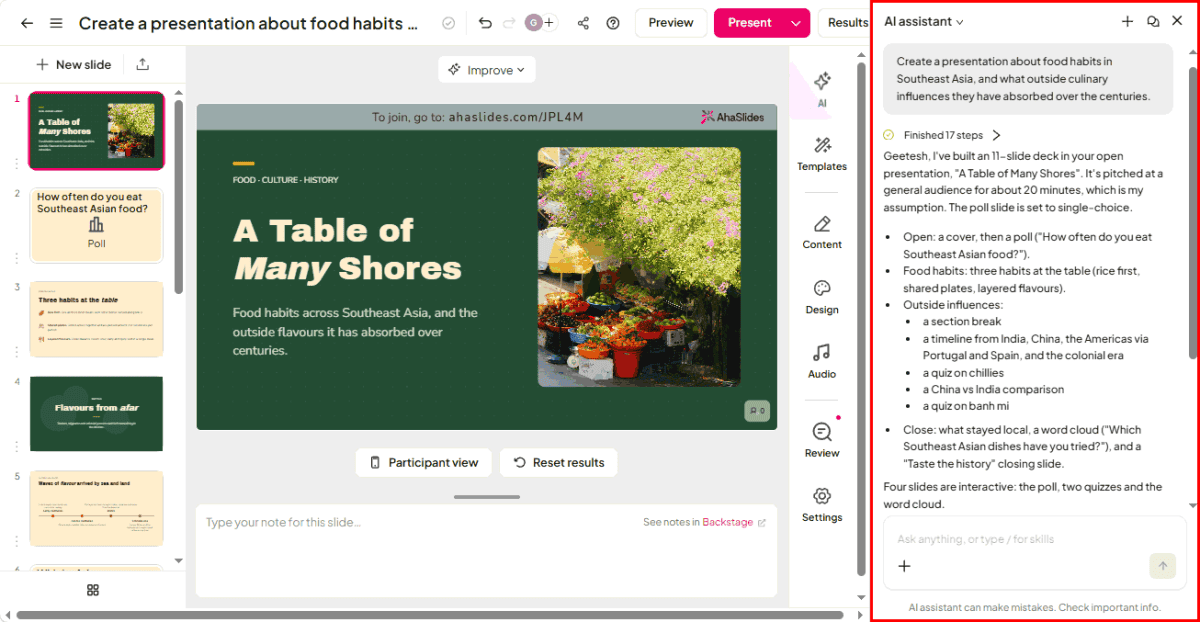
Figure 7: AhaSlides will now build the slides
Four Kinds of Slides
Picture a training day. In the morning, you check what people already know. Mid-session, you ask for opinions. In between, you explain, show and demonstrate. Three different jobs, and AhaSlides gives each one its own bucket of slides. Think of it as a well-run restaurant. There is the main course, the conversation at the table, and the plates that hold it all together.
To cater to all sorts of dining options, AhaSlides groups its slides into several buckets, as shown in Figure 8, below.

Figure 8: Types of slides
When you hover your cursor over a slide type, you can see a preview of that slide in the Slide area, highlighted in blue within Figure 8, above. You also see a short animation and a brief explanation. We explore all these slide types next.
1. Quiz Slides
Quiz slides are scored. They include Pick Answer, Short Answer, Match Pairs, Categorize, and Correct Order, and are highlighted in red within Figure 8, above. These slide types work well for training, learning reinforcement and competitions.
2. Game Slides
Game slides such as the Spinner Wheel allow the audience to have the next step decided for them. You can see them highlighted in orange within Figure 8, above, and they work best for interaction, paraphrasing, and takeaways.
3. Poll Slides
These are engagement slides and are not scored. You can see them highlighted in green within Figure 8. They include Poll, Open-Ended, Word Cloud, Idea Board, Rating Scale, Ranking, and Pin on Image. A poll helps with quick decisions. A word cloud works as an icebreaker. A rating scale collects feedback.
4. Content Slides
Content slides, highlighted in purple in Figure 8, hold text, headings, lists, images, QR codes and YouTube videos.
You can mix all four types in one AhaSlides presentation.
Building a Quiz
Let’s now build up a simple quiz quickly:
- Create a new AhaSlides presentation or open an existing one. Next, in the left pane, click the New Slide thumbnail, as shown highlighted in Figure 9, below.

Figure 9: Add a new slide- In the ensuing screen, choose the Pick Answer option, highlighted in red within Figure 10, below.

Figure 10: Pick Answer slide option- In the Pick Answer pane on the right, type in a question as shown highlighted in red within Figure 11, below. Then, type in the correct answer, shown highlighted in blue.

Figure 11: Add questions and answers- Now, you need to add some incorrect answers as well. You can type in your own answers, but you can also click the Generate options button, highlighted in green within Figure 11, above. AhaSlides will add some more answers as shown in Figure 12, below.

Figure 12: Generate answers with AhaSlides- A Pick Answer slide needs a set of answers, but only one correct answer. Make sure you mark the correct one.
- Each slide type has several settings, and each setting has a small question mark icon, called a guidance card, shown highlighted in red within Figure 13, below. Hold your cursor over the question mark icon to see a tool tip with details, highlighted in green.

Figure 13: Tool tips- Trainers will find a few settings especially useful. Faster answers can earn more points, which adds pace. Results can stay hidden until the presenter reveals them, so participants are not swayed by others and the reveal builds suspense. Shuffled options make copying a neighbor harder, team play lets you set team count, size, names, colors and scoring, and leaderboards can appear automatically with team or individual scores.
We explored the Pick Answer slide type as an example. You can similarly add many types of slides, and as you play with them, you will learn to appreciate the amazing number of slide types and options that AhaSlides provides.
The PowerPoint Add-in
This is where AhaSlides becomes relevant to most presenters who use PowerPoint. Think of a trainer who has refined the same PowerPoint deck over five years. Every slide is placed with care, and every animation is timed to the second. Asking that trainer to rebuild the deck in a new tool is like asking a chef to cook in a stranger’s kitchen. The dishes might turn out fine, but nothing is where it should be.
The AhaSlides add-in avoids that problem. You stay in your own kitchen. Sign in to the same AhaSlides account through the add-in, and your AhaSlides presentations are already waiting there, ready to place into your deck.
Installing AhaSlides
Follow these steps to install the AhaSlides add-in from the Microsoft store:
- Launch PowerPoint and open any presentation. Access the Home tab of the Ribbon and click the Add-ins button, as shown highlighted in red within Figure 14, below.

Figure 14: Add-ins button on the Home tab- In the dialog box that appears, search for AhaSlides, as shown highlighted in red within Figure 15, below. In the results, click the Add button next to AhaSlides to install it.

Figure 15: AhaSlides add-in in the Microsoft store- You may see the Let this app access your info window, as shown in Figure 16, below. Click the Accept button.

Figure 16: Let this app access your info- The AhaSlides screen shows atop the slide, as shown in Figure 17, below. Sign in with the same account you use on the AhaSlides dashboard. You only need to sign in once.

Figure 17: Sign in to AhaSlides
Adding AhaSlides to PowerPoint
Now that you have installed the AhaSlides add-in within PowerPoint, let’s get started working with it.
- Navigate to an existing slide or create a new one, where you want to add some interactive content.
- Access the Home tab of the Ribbon and click the Add-ins button, as shown highlighted in red within Figure 14, shown previously on this page. Click the AhaSlides icon, highlighted in red within Figure 18, below.

Figure 18: Click the AhaSlides icon- You will see your slide is now covered entirely with something akin to your AhaSlides dashboard. You can work here and click on options, similarly to how you would work on the AhaSlides website. We navigated to the Pick Answer slide we created in the preceding section, as shown in Figure 19, below.

Figure 19: Your AhaSlides presentations- Now, select one or more slides from this AhaSlides presentation to use in PowerPoint. You can insert all slides or select only the ones you need. To select all slides, click on the Select all option, highlighted in green within Figure 20, below. To select individual slides, click on the check mark next to the slide, as shown highlighted in red. Once you have selected the slides you need, click on the prominent Add slide button.

Figure 20: Add selected slides- Each AhaSlides slide lands as its own slide in your PowerPoint deck. Save your presentation.
Running AhaSlides in PowerPoint
You run your slide show with AhaSlides content in the same way as you run normal PowerPoint slides. Follow these steps to learn more:
- Save your PowerPoint presentation if you made any changes. Next, play the presentation in Slide Show view.
- Your presentation deck moves from slide to slide, including moving from regular PowerPoint slides to interactive AhaSlides and back without switching windows.
- If you need to share a QR code while your AhaSlides is the active slide, press Q during the show to bring up the join QR code, as shown in Figure 21, below. To hide the QR code, press Q again. Since the QR code is so easily accessed, you do not need a dedicated QR code slide.

Figure 21: QR code to join- Attendees can use the QR code to sign in. Alternatively, they can also manually type in the simple URL on the top of the slide, shown in Figure 21, above.
Best Practices
These best practices will help you use AhaSlides optimally:
- Each AhaSlides presentation has its own QR code. All interactive slides in a PowerPoint deck should come from the same AhaSlides presentation. Build that presentation first with all the polls and quizzes you need, then place its slides in your PowerPoint deck.
- Interactive slides can be anywhere in the deck, in any order. They do not need to follow their order in the source presentation.
More AhaSlides Options
In this section, we will look at other AhaSlides options that you should be aware of, so as to work optimally with some amazing features.
1. Sync: One File, Always Current
Picture a trainer who imports her PowerPoint deck into AhaSlides on Monday. On Tuesday, her manager asks for two updated slides in the original PowerPoint presentation. She edits the original deck, then realizes the AhaSlides copy is now out of date. Now she has two versions of the same presentation, and she has to remember which one is current.
The Sync option solves that problem. You’ll find it in the Import section, shown previously on this page on Figure 4. It connects an existing file on Google Drive or OneDrive to AhaSlides. Whenever you change the original file, the AhaSlides version updates automatically.
Think of it as a shared calendar instead of two paper diaries. Update one entry, and everyone sees the same schedule. You keep working in PowerPoint, the program you know, and AhaSlides keeps up.
2. Removing the AhaSlides Logo
While presenting, you will see the AhaSlides logo on the top-right, as shown in Figure 21, previously on this page. However, due to brand rules, many organizations allow only their own logo on slides. A third-party logo in the corner can fail a brand review, especially in client-facing or board presentations. Fortunately, the AhaSlides logo on interactive slides can be turned off during the presentation. This feature is only available on Pro and Enterprise plans, and you cannot do this change within the PowerPoint add-in.
To remove or change the logo, follow these steps on the AhaSlides website:
- Open the presentation where you want to remove or change the logo. Click on the logo, and you will see a menu with two options. To remove, click on the Hide option, highlighted in red within Figure 22, below.

Figure 22: Logo options- Hiding the logo means that you will have no logo showing in the top-right of your slides. You can also use the Change option, highlighted in blue within Figure 22, above, to replace the AhaSlides logo with your own logo.
- Back in PowerPoint, refresh the inserted slides. If you’ve made any changes to your original slide on AhaSlides, you can shut down and restart PowerPoint to see these changes.
3. Presenting with AhaSlides
In PowerPoint, you can use Presenter view, and AhaSlides content also shows up as previews. However, for the best experience, and to test the interaction in your content, you should use AhaSlides’ own viewing options. These are available in the top right, as shown highlighted in red within Figure 23, below.

Figure 23: Preview and Present
The Preview option shows you both your screen (Presenter), and how an audience member using a mobile phone (Participant) will see the interaction, as shown in Figure 24, below.

Figure 24: Presenter and Participant views
The Present option has a drop-down that brings up a menu shown in Figure 23, previously on this page. These options are explained below:
- Present from the current slide: Presents the deck from the active slide.
- Present from the first slide: Presents the deck from the first slide, irrespective of the active slide.
- Present with Backstage: This feature is in beta now and is similar to PowerPoint’s Presenter view that shows you notes and previews of upcoming slides.
4. Joining a Session
Participants join with a link or a QR code, and no app or account is needed on their side. The link can go out by email or chat, and the QR code can be downloaded. Both can be shared in advance for a scheduled session. The presenter then makes the presentation live when it is time to start.
5. Reports and Analytics
Each presentation has a report on the dashboard. To access the reports, access the left pane on the AhaSides site, and click on the Reports option, highlighted in red within Figure 24, below. The summary shows total participants, responses, quiz accuracy, engagement, and reactions.

Figure 24: Access reports
To get reports for the active presentation, you can click on the Results option at the top-right of the interface, highlighted in blue within Figure 25, below.

Figure 25: Access reports via Results
6. Running the Same Session Again
Trainers often deliver the same session several times and may find that poll results from previous sessions show up. And so, they duplicate the presentation, and they end up with hundreds of duplicate presentations. Unless those results need to be retained, you can use Reset Results rather than duplicating:
- Go to your Presentations list in AhaSlides.
- For the presentation you want to use, you will find a three-dot icon in the rightmost area, highlighted in blue within Figure 26, below.

Figure 26: Menu options for your presentations- Now, click on the Reset Results option, highlighted in red within Figure 26, above.
The Reset Results option clears votes, reactions and responses, but keeps the data from each earlier session. You can then compare a morning group with an afternoon group.
Pricing and Support
You can start with AhaSlides with the Free plan, with no credit card and no expiry date, for up to 50 participants and a handful of quiz and poll slides. Need more room? Essential, at about $7.95 a month on annual billing, welcomes up to 100 participants and lifts the slide limits. Pro, at about $15.95 a month on annual billing, unlocks unlimited interactive slides, your own branding, team play and full reports. Larger organizations can ask for an Enterprise quote with white-label branding and SSO. Teachers and NGOs pay less for the Educational plan, and a One-time plan covers a single big event for 24 hours.
AhaSlides offers support at several levels. Self-help starts with a Help Centre and online documentation that covers setup, features and integrations. Users on all plans can reach the team through live chat or by email. Pro users get priority support, while Enterprise customers add premium engineering support and professional onboarding.
Strengths and Considerations
There is a lot to like here. Your audience joins from a phone in seconds, with no app and no sign-up. The PowerPoint add-in lets interactive slides live inside your existing deck, and pressing Q to bring up the QR code is a clever touch. Hover previews and guidance cards make the tool easy to learn. Trainers will enjoy manual reveal, shuffle and team play, while self-paced mode and Reset Results help one deck go much further.
Still, plan ahead. Pull all interactive slides into a deck from a single AhaSlides presentation. Expect branding options to vary by plan, and always check what the AI writes before you present it. And since everything runs in the cloud, make sure the Wi-Fi is on your side too.
Conclusion
AhaSlides covers the full cycle of audience interaction: joining, participating, scoring and reporting. Its main strength for PowerPoint users is the add-in. You keep your deck, your design and your workflow, and add interaction only where it helps. For trainers and teachers who already present in PowerPoint, it is worth a close look.